ADHD-Friendly Workspace Tips for Mac Users
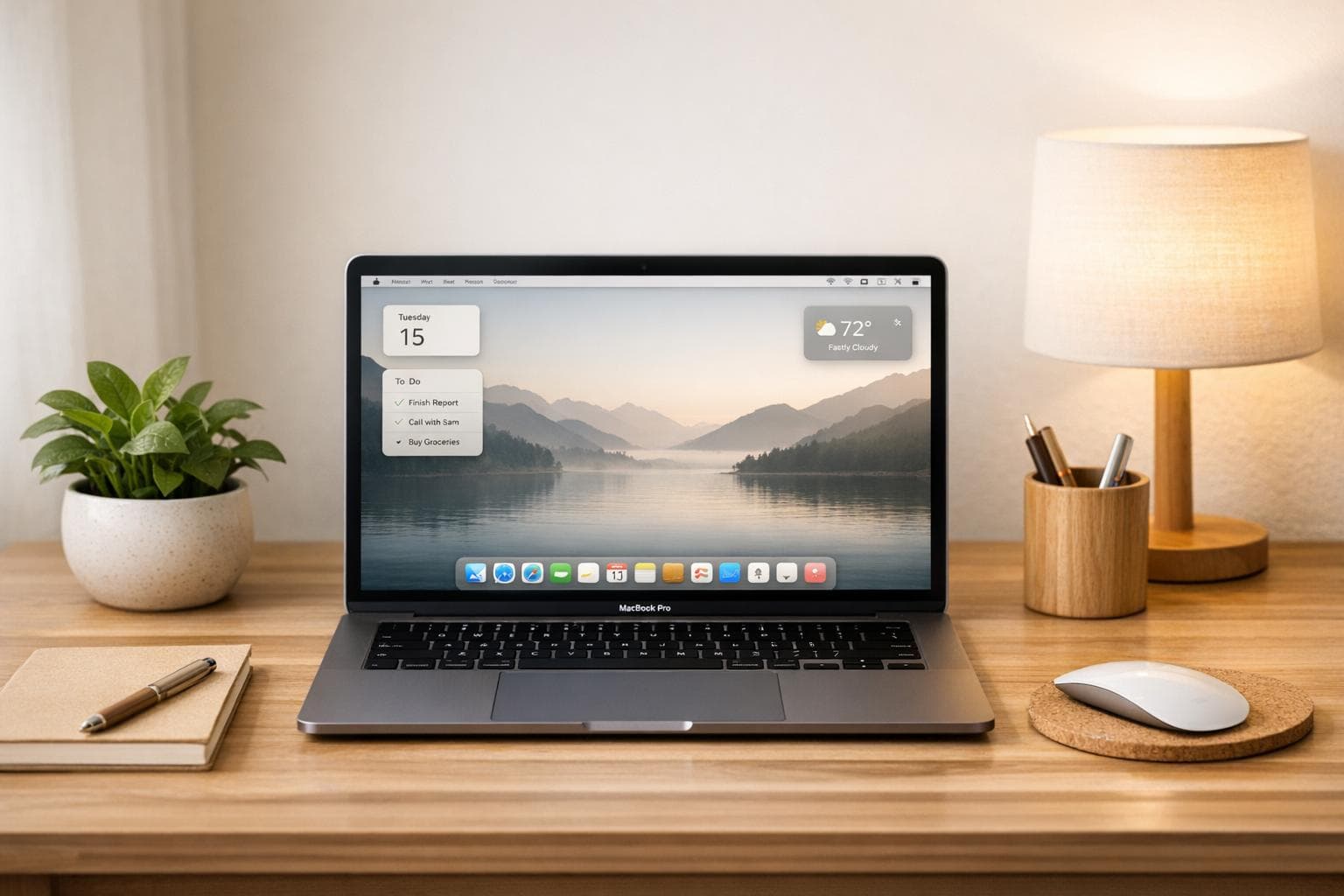
ADHD-Friendly Workspace Tips for Mac Users
If managing focus feels like a constant battle on your Mac, you're not alone - especially if you have ADHD. Between endless notifications, cluttered desktops, and the dopamine-driven need for stimulation, staying productive can feel overwhelming. But with the right strategies, you can create a workspace that helps you focus instead of fighting against you.
Here’s how to get started:
- Declutter Your Desktop: Organize files into folders and use macOS tools like "Stacks" and "Spaces" to keep things tidy.
- Simplify Your Dock: Limit it to 5–10 essential apps and hide it when not in use to reduce visual distractions.
- Use Focus Modes: Silence notifications and customize app behaviors to stay in the zone.
- Leverage macOS Features: Tools like Split View, Mission Control, and Stage Manager help you manage tasks without getting overwhelmed.
- Try Focusmo: This app offers distraction blocking, time tracking, and visual reminders designed for ADHD brains.
- Create a Sensory-Friendly Setup: Adjust noise and display settings to reduce sensory overload, like enabling Background Sounds or using Dark Mode.
The key is to combine macOS tools with tailored systems that work for your brain. Whether it’s cleaning up your workspace, automating Focus Modes, or using apps like Focusmo, these steps can help you regain control and make your Mac a productivity ally.
Your Macbook Setup Guide for Minimalist Productivity 2025!
Setting Up Your Mac Desktop and Dock
Your Mac desktop and Dock are the first things you see when you start your day, and for someone with ADHD, visual clutter can be a serious roadblock to staying focused. A desktop buried under files and a Dock overloaded with app icons can create unnecessary distractions. The solution? Streamline both to include only the essentials.
Cleaning Up Your Desktop
Begin by clearing off your desktop entirely. Move files into a few well-organized folders in your Documents directory - think categories like Work, Personal, or To Sort. If you often need quick access to certain files, you can use the "Stacks" feature. Simply right-click on your desktop and choose Use Stacks to group files by type, date, or tags.
For even more organization, take advantage of macOS's Spaces feature, which allows you to create up to 16 virtual desktops for different tasks. Open Mission Control by swiping up with three fingers, then click the + button to add a new Space. You can dedicate each Space to specific apps - maybe one for email and messaging, another for creative tools, and a third for browsing. To make an app stick to a particular Space, control-click its Dock icon, select Options, and choose This Desktop under "Assign To."
Once your desktop is tidy, it’s time to shift focus to simplifying your Dock.
Organizing Your Dock
The Dock should only feature the apps you use every day. To declutter, drag any unnecessary icons off the Dock to remove them. Aim to keep it limited to 5–10 essential apps, such as your browser, messaging tools, and core work applications. This keeps choices simple and minimizes decision fatigue.
You can also tweak Dock settings to reduce distractions. Go to System Settings > Desktop & Dock, where you can adjust the Dock size, disable magnification, or enable Automatically hide and show the Dock so it stays out of sight when not in use. Another helpful option is toggling the setting When switching to an application, switch to a Space with open windows for the application. Turning this off prevents your Mac from unexpectedly jumping to a different Space, which can interrupt your workflow and break your concentration.
Using macOS Features for ADHD Support
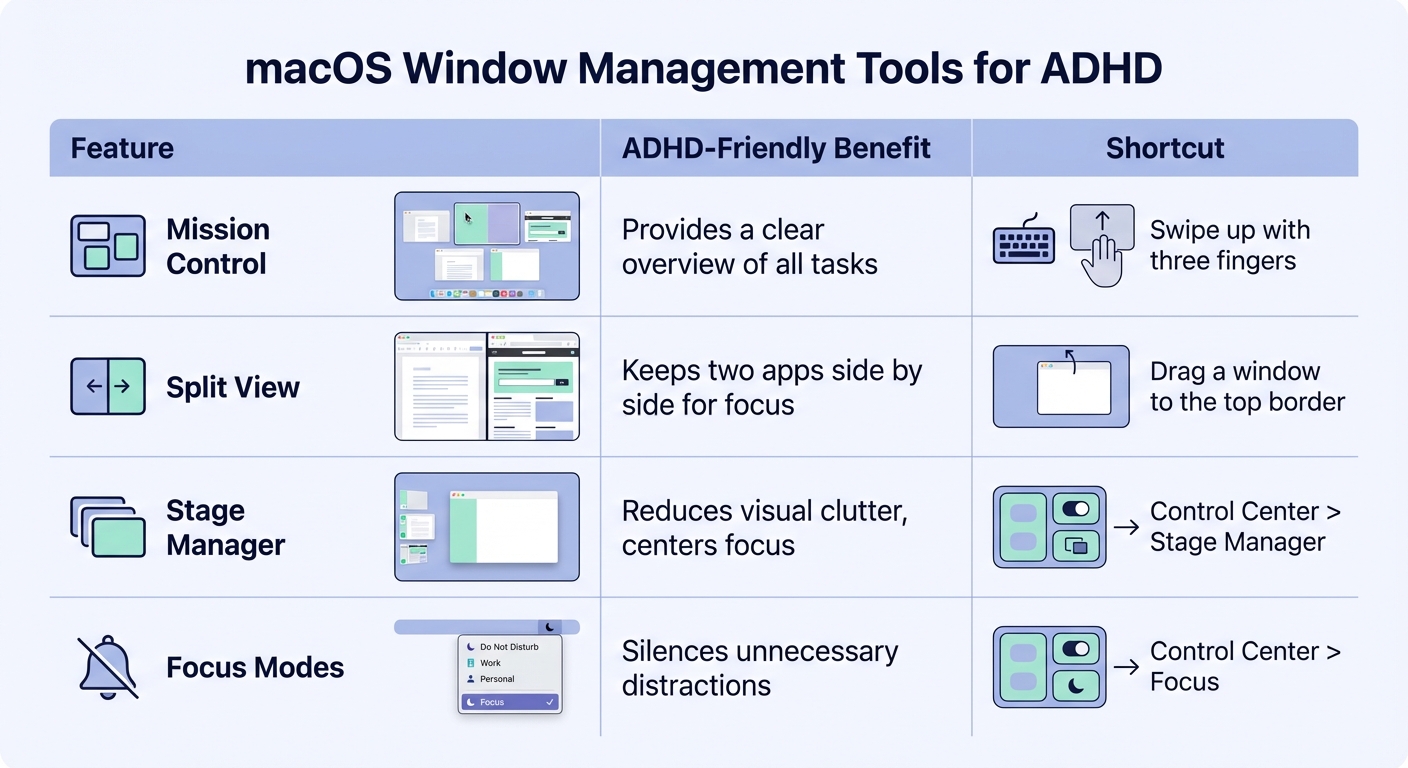
macOS Window Management Features for ADHD Focus
macOS comes equipped with tools designed to help users manage distractions more effectively, making it a great ally for individuals with ADHD. By tweaking settings and automating controls, you can build a workspace that supports sustained focus and minimizes interruptions. These features work hand-in-hand with a well-organized desktop to cut down on digital clutter.
Focus Modes and Notification Settings
Focus Modes act as your first layer of defense against constant notifications. You can create up to ten custom Focus profiles, such as "Deep Work", "Study", or "Admin", each with its own unique icon and color to visually reflect your current mindset. With Intelligent Breakthrough, only critical alerts make it through, ensuring you're not distracted unnecessarily.
You can access Focus Modes through the Control Center, where you can manually activate them or set them to turn on automatically at specific times - like 9:00 AM on weekdays - or when you open certain apps. Customization allows you to control which contacts and apps can interrupt you, silencing everything else. For emergencies, enabling Allow Repeated Calls ensures that a second call from the same person within three minutes will still come through.
Focus Filters offer even more control by adjusting how individual apps behave during a Focus session. For example, you can configure Safari to show only your "Work" Tab Group or hide personal email accounts in Mail to avoid distractions. It's also a good idea to enable Time Sensitive Notifications for key apps like Calendar, so you don’t miss important deadlines even when Focus is active.
Need a quick way to silence distractions? Press Option and click the date and time icon to toggle Do Not Disturb. Additionally, enabling Share Across Devices ensures that activating a Focus Mode on your Mac will automatically sync it across your iPhone, iPad, and Apple Watch, keeping you distraction-free on all your devices.
Managing Windows and Tasks
macOS also provides tools to help you organize your workspace and streamline tasks, making multitasking easier and less overwhelming.
- Mission Control gives you a bird’s-eye view of all open windows, full-screen apps, and Spaces. Swipe up with three fingers or press Control + Up Arrow to display everything in one glance, helping you stay on top of multiple tasks.
- Split View lets you work with two apps side by side, locking them in place to reduce the temptation of constant app-switching. Simply drag a window to the top of the screen until a blue highlight appears, then choose a second app to fill the other half.
- Stage Manager keeps your active app front and center while grouping recently used apps along the side. You can even drag related apps into groups for quick toggling. To enable Stage Manager, head to the Control Center and click Stage Manager.
Here’s a quick summary of these tools and their ADHD-friendly benefits:
| Feature | ADHD-Friendly Benefit | Shortcut |
|---|---|---|
| Mission Control | Provides a clear overview of all tasks | Swipe up with three fingers |
| Split View | Keeps two apps side by side for focus | Drag a window to the top border |
| Stage Manager | Reduces visual clutter, centers focus | Control Center > Stage Manager |
| Focus Modes | Silences unnecessary distractions | Control Center > Focus |
Using Focusmo for ADHD Productivity
macOS is already a great tool for organizing your workspace, but when paired with Focusmo, it becomes even more effective for managing focus and time. For Mac users with ADHD, Focusmo offers a suite of tools specifically designed to address common challenges like time blindness, task drift, and distractions from apps. While macOS provides a solid foundation, Focusmo builds on it with features tailored to ADHD needs, creating a more focused and productive workflow.
Focusmo Features
Focusmo blends accountability tools with automatic tracking to help you stay on task. For instance, the app provides hourly check-ins and tracks your time automatically, helping you stay aware of your progress. As Faye Campbell from motionapp.com puts it:
"It's just handy to have an accountability buddy to remind me: just do one thing, finish this one thing, do what you said you were going to do".
Another standout feature is the floating island, which keeps your current goal visible on the screen. This visual reminder acts as a constant anchor, helping you avoid forgetfulness. Aiden Thompson, a software engineer, shares:
"The blue waves in the banner really help me visualize time, especially when I am time blind. It really helps the ADHD brain".
Focusmo also includes distraction blocking, which prevents access to apps and websites like Slack or Instagram that can interrupt your flow. Studies show that switching to these distractions mid-task can cost you over 20 minutes of focus. Additionally, the app’s full-screen meeting alerts eliminate the need to keep checking the clock, easing anxiety about missing appointments and allowing for deeper concentration.
The Pomodoro timer is another helpful tool, ensuring you take regular breaks to avoid burnout during periods of hyperfocus. Will Davidow, a web engineer, notes:
"I've only been using Focusmo for about a week, but it's allowed me to organize tasks and manage my time more effectively while also keeping health and mental breaks in mind".
With these features, Focusmo offers a comprehensive approach to tackling ADHD-related productivity challenges.
Focusmo Pricing and Plans
Focusmo keeps things simple with two plans:
| Plan | Price | Features Included |
|---|---|---|
| Free Trial | Free for 7 days | Full access to all features, including distraction blocking, hourly check-ins, automatic time tracking, Pomodoro timers, and meeting alerts |
| Lifetime Plan | $150 (one-time payment) | Permanent access for up to 5 devices, all 15+ features, hundreds of customizations, and ongoing updates |
The free trial gives you a full week to see if Focusmo’s tools align with your productivity needs. For those ready to commit, the lifetime plan offers a one-time payment option, eliminating subscription fees while guaranteeing access to all features and future updates. It's a straightforward and cost-effective way to invest in better focus and productivity.
sbb-itb-8245ce4
Organizing Files and Using Finder
Setting Up a File Organization System
Once you've decluttered your desktop and streamlined your Dock, the next step is creating a solid file organization system. A well-structured folder setup not only reduces visual clutter but also takes the guesswork out of finding what you need, helping you stay focused.
Start by setting up a clear folder hierarchy that mirrors how you naturally think about your files. For example, you could organize folders like this: Work > Clients > Project. When naming files, go for descriptive titles that make their contents obvious at a glance. Instead of vague names like "Document1" or "Notes", try something like "2026-01-Budget-Draft" or "Client-Meeting-Notes-Jan15" for clarity and quick identification.
To make folders stand out, customize their icons with colors, symbols, or even emojis. This small tweak can save time by making folders easier to spot while scanning. Additionally, macOS color tags (Control-1 through Control-7) are a handy way to categorize files instantly. Once tagged, you can access all related items with a single click from the Finder sidebar.
Using Finder Tools
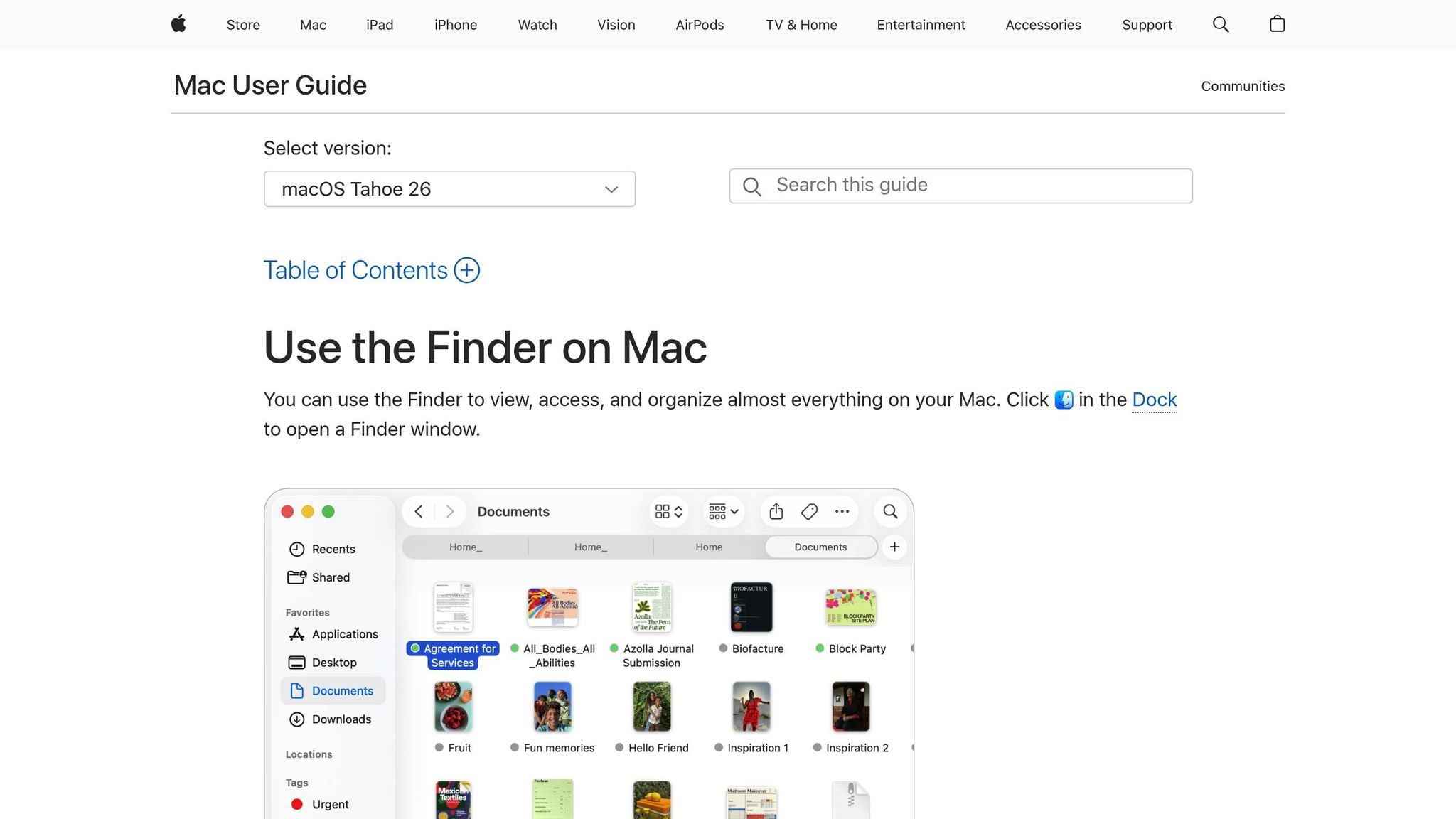
Once your files are neatly organized, macOS Finder tools can help you manage and locate them effortlessly. Smart Folders are a great example. These dynamic folders automatically gather files based on criteria you set - like "all PDFs created this week" - without actually moving the files from their original locations. To create one, go to Finder > File > New Smart Folder, set your criteria, and save it to your sidebar for quick access.
Another useful tool is Quick Look. By pressing the Spacebar, you can preview files instantly without needing to open them in a separate program. This keeps you from getting sidetracked by having multiple apps open. Similarly, Spotlight search (Command-Space) makes finding files incredibly fast. You can search by file name or even content, skipping the hassle of digging through folders altogether.
For folders you use often, consider dragging them into the Finder sidebar. This creates shortcuts that save time and reduce the effort of navigating through deep folder structures.
Creating a Sensory-Friendly Workspace
Once your digital workspace is organized, the next step is managing sensory inputs to help maintain focus. Fine-tuning sensory elements can go a long way in reducing distractions and creating a more productive environment.
Managing Noise Distractions
Noise can be a major disruptor when you're trying to concentrate. If you're using macOS, there's a handy Background Sounds feature that can mask unwanted noise with ambient options like rain, ocean waves, or white noise. To activate it, navigate to System Settings > Accessibility > Audio and turn on Background Sounds. From there, you can choose from options such as Balanced Noise, Bright Noise, Dark Noise, Ocean, Rain, or Stream.
For quick access, add the Hearing control to your Menu Bar. You can also tweak the equalizer in the Background Sounds settings and select the "Focused" tone, which adjusts frequency ranges to help reduce distractions.
If notification sounds are pulling your attention away, try enabling "Flash the screen for notifications" under Accessibility > Audio. This swaps - or supplements - auditory alerts with visual cues. Pairing these visual notifications with Focus modes can help keep your workspace quieter and more distraction-free.
Once you've addressed sound distractions, it's time to refine your display settings to further enhance your sensory-friendly environment.
Adjusting Display and Accessibility Settings
Visual comfort is just as important as managing noise. Start by going to System Settings > Accessibility > Display to make adjustments like enabling Reduce Transparency and Increase Contrast. These settings create a cleaner, less cluttered interface that can make it easier to focus. You might also want to turn on Reduce Motion to limit distracting animations and Dim Flashing Lights to avoid sensory overload from strobe effects.
For evening work sessions, enable Night Shift under System Settings > Displays. This shifts your screen to warmer tones, cutting down on blue light exposure and promoting better sleep. If bright, white backgrounds feel overwhelming, switching to Dark Mode can offer a more subdued, visually calming experience.
To make your cursor easier to spot, increase its size or set a custom bright color under Accessibility > Pointer. For text-heavy tasks, consider enabling Hover Text in Accessibility > Zoom. This feature magnifies on-screen text when you hover over it, making it easier to read and reducing eye strain.
Conclusion
Creating a workspace on your Mac that supports ADHD isn't about a single fix - it’s about layering multiple strategies. By tidying up your desktop, limiting your Dock to 5–7 essential apps, and using macOS Focus modes to block interruptions, you can lower mental clutter and stay on track.
Combining macOS's built-in tools with specialized apps like Focusmo gives you a stronger system for managing ADHD-related challenges. While macOS Focus modes handle notifications and Focus Filters fine-tune app behaviors, Focusmo steps in with features like hourly check-ins, Pomodoro timers, and distraction blockers. Together, these tools tackle both external interruptions and internal time management struggles, helping you protect your workflow and stay productive.
Here’s something to keep in mind: every interruption can cost you about 23 minutes to fully regain focus. That’s why automating Focus modes and keeping your desktop minimal aren’t just nice-to-haves - they’re essential. Adding sensory-friendly tweaks like background sounds or reduced motion settings can also create a calmer, more focused environment.
Ultimately, it’s all about customization. No two people with ADHD are the same, so it’s important to experiment and find what works best for you. Start by addressing your biggest challenges, whether that’s cutting down on notifications, reducing visual clutter, or managing time more effectively. Your workspace should be designed to complement how your mind works - not fight against it.
FAQs
How can I use macOS Focus Modes to create an ADHD-friendly workspace?
macOS Focus Modes offer a simple way to cut down on distractions and stay on task. By silencing non-essential notifications, they ensure that only the apps and contacts you choose can reach you. To set one up, head to System Settings, click on Focus, and create a custom mode that suits your work style. You can decide which apps and contacts get through, schedule when the mode should activate, or even set it to turn on automatically based on your location or the time of day.
For added productivity, you might want to check out Focusmo. This app works seamlessly with macOS Focus Modes, providing tools like distraction blockers, Pomodoro timers, and detailed activity tracking. It’s especially helpful for staying organized and maintaining focus, even for individuals managing ADHD. Together, these tools can transform your workspace into a zone built for productivity.
How can I quickly declutter my Mac desktop and Dock to stay focused?
Here are a few straightforward tips to tidy up your Mac desktop and Dock, helping you stay focused and work more efficiently:
- Create a “Sort” Folder: Highlight all the icons on your desktop (Command + A) and drag them into a new folder named something like “To Sort.” This quick trick clears the clutter instantly, giving you a clean slate to organize later.
- Use Finder’s Clean Up Tools: Right-click anywhere on your desktop and select Clean Up By → Name, Date, or Kind to arrange your icons neatly. For automatic alignment, choose Clean Up to keep things orderly.
- Enable Stacks: Go to the desktop View menu and click Use Stacks. This groups your files by type or date into tidy piles, making everything easier to find.
- Streamline the Dock: Simplify your Dock by removing apps you rarely use. Just drag an app icon off the Dock or right-click it, then select Options → Remove from Dock. Keep only the tools you use daily for a more focused workspace.
For a long-term solution, you might want to check out Focusmo, a productivity app designed to help you manage your time, block distractions, and stay on track. It’s particularly useful if you find it challenging to maintain an organized and clutter-free workspace.
How can Focusmo help Mac users with ADHD improve productivity?
Focusmo is crafted for Mac users with ADHD, tackling productivity struggles head-on. It brings together tools like hourly check-ins, task visibility, and automatic time tracking to help users stay organized, manage their time, and keep sight of their goals.
On top of that, the app includes helpful features like distraction blockers, Pomodoro timers, and detailed activity insights. These are specifically designed to sharpen focus, ease feelings of overwhelm, and encourage the development of productive daily habits. It’s all about staying on track and accountable, one step at a time.