ADHD Study Tips: Managing Distractions on Mac

ADHD Study Tips: Managing Distractions on Mac
If you have ADHD, studying on a Mac can feel overwhelming with constant distractions like notifications, app switching, and time mismanagement. But with the right tools and strategies, you can turn your Mac into a productivity ally. Here's how:
- Use macOS Tools: Features like Focus Mode, Screen Time, and Do Not Disturb can block interruptions and help you stay on track.
- Pomodoro Technique: Break study sessions into short, timed intervals (e.g., 25 minutes work, 5 minutes break) to maintain focus.
- Declutter Your Workspace: Clean your desktop, limit Dock apps, and use full-screen or Split View to minimize visual noise.
- Leverage Apps Like Focusmo: This app offers hourly check-ins, task visibility, distraction blocking, and time tracking to support ADHD-specific challenges.
These methods help manage ADHD symptoms like inattention, time blindness, and hyperfocus, making it easier to stay productive. Start small - try one strategy today and build from there.
5 ADHD Productivity Tools That Actually Work
How ADHD Affects Focus During Mac Study Sessions
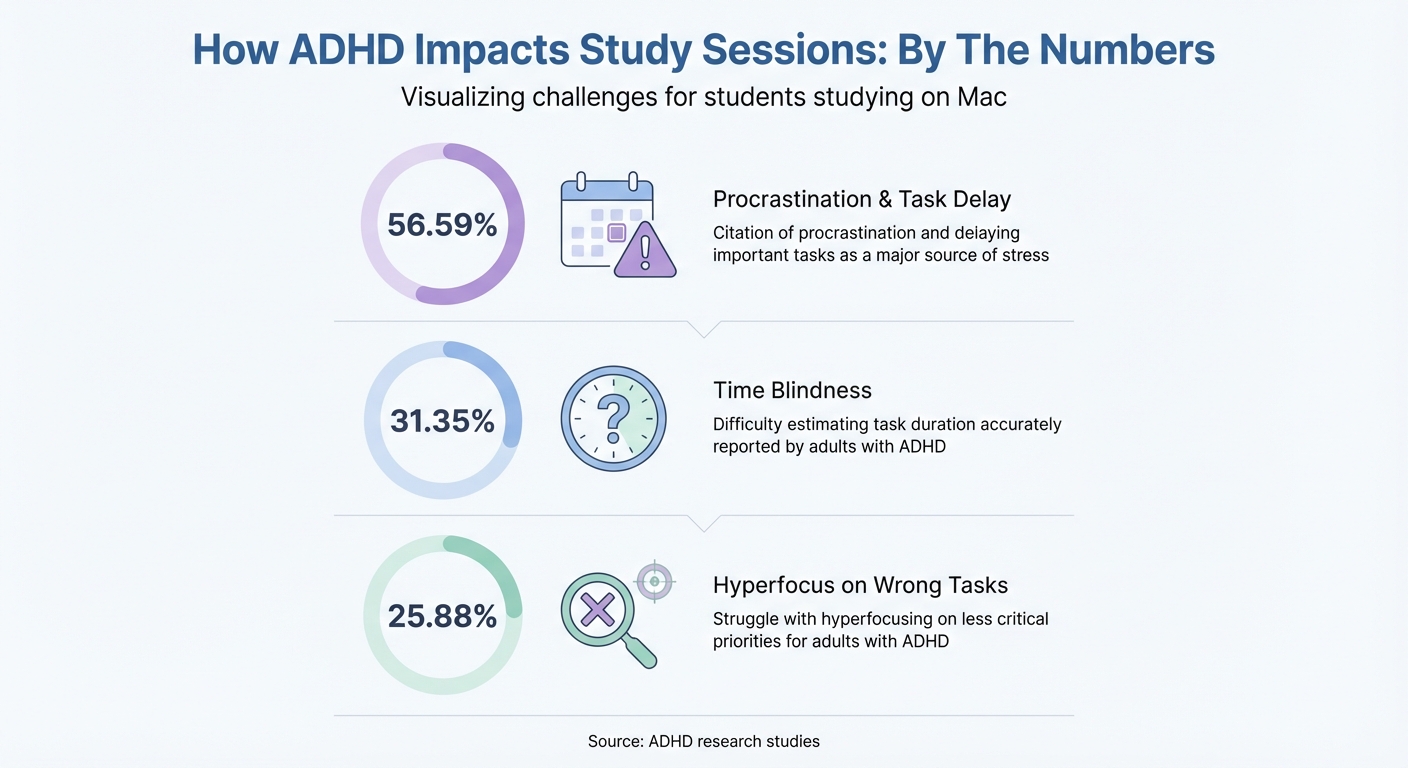
ADHD Study Challenges: Key Statistics and Impact on Mac Users
When you sit down at your Mac to study, ADHD symptoms can significantly influence how you interact with the device. Inattention, one of the most common symptoms, often makes it hard to stay engaged with repetitive or slow-moving tasks like reading textbooks or solving math problems. This is largely due to lower dopamine levels, which make these activities feel unrewarding.
Time blindness adds another hurdle. You might misjudge how long a task will take or fail to notice a deadline creeping up until it's too late. In fact, 31.35% of adults with ADHD report difficulty estimating task duration accurately. This makes it tough to prioritize urgent assignments over the tempting distractions your Mac offers - distractions that are always just a click away.
On top of that, impaired executive function makes tracking deadlines, remembering details, and juggling tasks a real challenge. A 2006 pilot study revealed that people with ADHD are more prone to task paralysis, where you feel completely stuck despite wanting to start. Psychiatrist Dr. Alejandro Alva explains:
"For someone with ADHD, it's like being rooted to the spot even when you genuinely want to begin. This paralysis often results from a combination of anxiety, overstimulation, and difficulties with executive function".
These brain processes set the stage for understanding why your Mac can be both a tool and a trap when it comes to staying focused.
Common Distraction Triggers
Your Mac is packed with potential distractions that can derail focus for anyone with ADHD. Notification overload is a major culprit - every ping or banner pulls your attention away, offering a quick dopamine boost that studying just can't compete with.
Endless app switching is another issue. You might start researching a topic but quickly find yourself checking emails, scrolling through social media, or watching YouTube videos instead. The ease of moving between apps on a Mac makes it all too tempting to follow these impulses.
Then there’s hyperfocus, which presents a different kind of challenge. While ADHD is often associated with distraction, it can also cause intense focus on the wrong tasks. As Understood.org explains:
"When the ADHD brain is hyperfocused on something it likes, it can stay on task for long periods. But it can be hard to move on to other important tasks".
You might spend hours meticulously organizing your desktop files while ignoring an essay due tomorrow. Research shows that 25.88% of adults with ADHD struggle with hyperfocusing on less critical priorities.
Finally, sensory sensitivity can complicate things further. People with ADHD are often highly reactive to environmental stimuli, like notification sounds, bright screens, or the clutter of multiple open windows and apps.
How Technology Can Help or Hurt ADHD Symptoms
Your Mac can be both a challenge and a solution. Without intentional management, it becomes a source of constant stimulation, feeding ADHD symptoms. Social media, videos, and games offer quick dopamine boosts that make it almost impossible to resist. It’s no surprise that 56.59% of adults with ADHD cite procrastination and delaying important tasks as a major source of stress.
But with deliberate use, technology can also help. MacOS features like Focus Mode and Screen Time are designed to block distractions and create barriers to impulsive behaviors. The trick is setting these tools up before you start studying, rather than relying on willpower in the moment. As the ADDA Editorial Team puts it:
"The ADHD brain is always looking for something fun, new, and exciting. But once you learn how to rein in your focus and direct it to the right thing, the abundance of attention that comes with ADHD is, in fact, a superpower".
Ultimately, whether your Mac helps or hinders your focus comes down to structure and boundaries. Every notification and open tab is a potential distraction, but by using Mac’s built-in features to create a more controlled environment, you can turn those challenges into a productive study session.
Using MacOS Built-In Tools to Block Distractions

MacOS comes equipped with handy features to help you create a study-friendly, distraction-free environment - no extra downloads needed. These tools can silence notifications, block distracting apps, and reduce visual clutter, making it easier to focus. The key is to set them up before you start studying, so you're not tempted to fiddle with settings when your focus is already wavering. Think of it as building a protective barrier for your concentration rather than relying on sheer willpower. Here's how to use MacOS features like Do Not Disturb and Focus Mode to stay on track.
Setting Up Focus Mode and Do Not Disturb
Do Not Disturb is your quick fix for silencing interruptions. You can toggle it right from the Control Center on your Mac to instantly block all notifications - perfect for those moments when you need to jump into a study session without delay.
For more tailored control, Focus Mode allows you to create up to ten custom profiles for different scenarios. To set it up, head to System Settings > Focus > Add Focus > Custom, and create a "Study" profile. Decide which apps and contacts can reach you - maybe just your calendar for deadlines or a trusted contact for emergencies. Everything else stays muted.
On Macs with Apple Intelligence, the Intelligent Breakthrough & Silencing feature uses AI to decide which notifications are important enough to interrupt you. Activating Time Sensitive Notifications ensures that only essential alerts get through, which can be a lifesaver if you often lose track of time.
You can also automate Focus Mode to kick in when you open a specific app, like a PDF reader or coding software. Just use the "Add Schedule" > "App" option, or set it to activate by location - like when you arrive at the library or a study spot. With Focus Filters, you can even adjust how apps behave during a session. For instance, you could configure Safari to show only a "Research" tab group while Study Mode is on, keeping personal tabs out of sight.
| Feature | Best For | How It Helps ADHD |
|---|---|---|
| Do Not Disturb | Quick, unplanned study sessions | Silences interruptions instantly |
| Focus Mode | Scheduled study blocks | Controls app and contact access |
| Intelligent Breakthrough | Balancing focus with key alerts | Filters critical notifications |
| Focus Filters | Reducing visual distractions | Hides unnecessary tabs or content |
Using Screen Time to Block Apps and Websites
If impulsivity gets in the way of your focus, Screen Time can help enforce boundaries on distracting apps and websites. To activate it, go to System Settings > Screen Time.
The App Limits feature lets you set daily time caps for specific apps, categories like "Social" or "Games", or even individual websites. Navigate to System Settings > Screen Time > App Limits, click "Add Limit", and choose the distractions you want to restrict. For example, you could limit YouTube or Reddit to 30 minutes a day. Be sure to enable "Block at end of limit" - without this, you'll just get a notification when you hit your limit, which is easy to ignore.
For stricter control, use Downtime, which blocks all apps except those on your "Always Allowed" list during scheduled hours. You can set it for "Every Day" or customize it for specific days. If you enable a Screen Time passcode (highly recommended), turn on "Block at Downtime" to prevent yourself from bypassing the restriction. For added accountability, consider having a trusted friend or family member set and hold the passcode.
The "App & Website Activity" report is another useful tool. It shows where you're spending your time, highlighting apps with the most notifications or frequent "Pickups." Check this report weekly to identify your biggest distractions and apply stricter limits where needed. This approach helps you tackle your specific habits rather than making random guesses.
One pro tip: enable "Share across devices" in Screen Time settings. This ensures that time spent on your iPhone or iPad counts toward your Mac app limits, stopping you from simply switching devices to bypass restrictions. Together, these tools create a consistent and controlled environment, helping you stay focused across all your Apple devices.
ADHD-Friendly Study Techniques for Mac
Studying with ADHD can feel like a juggling act, but the right strategies can make it more manageable. The key is to create structure without feeling boxed in - clear plans that remain flexible enough to adjust when needed. By turning distractions into manageable focus sessions, you can build a study routine that works for you. One proven approach to structure your time is the Pomodoro Technique.
Using the Pomodoro Technique
The Pomodoro Technique is a simple but effective method for managing focus. It breaks study time into short intervals - typically 25 minutes of focused work followed by a 5-minute break. This method helps make large tasks feel less intimidating and can be a great way to combat procrastination. For students with ADHD, the 25-minute interval can be customized to suit your attention span, whether that's 10, 15, or 20 minutes.
"Starting can be easier when the commitment feels small, and a 25-minute timer helps lower the pressure. That alone can build momentum." - Calm Editorial Team
Mac apps like Flow make this technique even easier by placing a timer in your menu bar. Its "commitment mode" prevents you from pausing or skipping, helping you stay on track. Pair this with a custom focus mode on your Mac to automatically silence notifications during your Pomodoro sessions. Some apps even offer gentle auditory cues, like a soft ticking sound, to subtly remind you to stay on task.
When it’s time for a break, step away from the screen and use those few minutes for stretching or light movement. This can help refresh your mind for the next session.
Keeping Tasks Visible On-Screen
Managing time is one part of the equation, but keeping your tasks in sight is equally important. Having your current task displayed on-screen can anchor your focus and reduce the urge to drift into unrelated activities. Many Mac apps integrate with the menu bar, showing both your task name and the remaining timer at the top of your screen.
For bigger projects, the Reminders app is a handy tool. You can create checklists that remain open next to your study materials or set up widgets in the Notification Center to keep your priorities front and center. Another option is apps like Vitamin‑R, which prompt you to write a brief description of your task before starting the timer. This small step of clarifying your goal - and keeping it visible - can help you stay grounded and focused.
sbb-itb-8245ce4
Focusmo: A Complete ADHD Productivity Tool for Mac
macOS offers some built-in tools to help manage distractions, but for students with ADHD, these often fall short of addressing the unique challenges they face. That’s where Focusmo steps in. Designed specifically for Mac users with ADHD, this app combines distraction blocking, time management, and accountability into one seamless package. It tackles common ADHD hurdles like time blindness, task drift, and the "out of sight, out of mind" phenomenon. Let’s dive into how its features can help you stay on track.
Key Features of Focusmo
Focusmo is built around three main pillars: hourly check-ins, constant task visibility, and automatic activity tracking. Every hour, the app prompts you to log what you’re doing and what’s next. This feature acts as a gentle nudge, helping you refocus and prioritize. As Faye Campbell from motionapp.com explains:
"It's just handy to have an accountability buddy to remind me: just do one thing, finish this one thing, do what you said you were going to do."
Another standout feature is the app’s "floating island", a small visual anchor that keeps your current task in view at the top of your screen. This is especially helpful for those who struggle with time blindness. For example, the app uses visual cues like "blue waves" in its banner to represent the passage of time. Aiden Thompson, a software engineer, shares:
"The blue waves in banner really helps me visualize time especially when I am time blind, really helps the ADHD brain. I have it always visible so I get reminded constantly of my current task."
Focusmo also includes tools like distraction blocking, a built-in Pomodoro timer to encourage timely breaks, and full-screen meeting alerts to help you avoid checking the clock. At the end of the day, you can review a detailed timeline of your app and website usage during study sessions. Together, these features create a cohesive system that promotes focus and accountability.
How Focusmo Helps ADHD Students Stay on Track
Focusmo’s features work together to keep you on task. The hourly check-ins help break hyperfocus on less important activities, while the floating island ensures your primary goal never fades into the background of browser tabs and notifications. Plus, you can convert any log entry into a distraction-free, timed work session.
Jessica Anderson, a university student managing severe ADHD, shared her experience:
"I am absolutely loving the experience of using the app, it has really provided exactly what I've always needed as a uni student with severe ADHD."
The app is easy to set up and offers over 100 customization options across 15+ features, allowing you to tailor it to your specific needs. Best of all, Focusmo is free to download, making it an accessible tool for students looking to develop better study habits without spending a dime. With Focusmo keeping you accountable and focused, you’ll have the perfect companion to optimize your Mac workspace for maximum productivity.
Setting Up Your Mac Workspace for Better Focus
Your Mac's workspace - both physical and digital - can hugely impact your ability to focus. Constantly switching between apps isn’t just distracting; it’s a major time-waster. For students, especially those with ADHD, clutter - whether visual or auditory - can sap energy and make it harder to concentrate. Let’s explore how to streamline your setup to create a more focused environment.
Reducing Visual and Auditory Clutter
A cluttered desktop equals a cluttered mind. Scattered files, shortcuts, and screenshots can drain your mental energy without you even realizing it. Start by clearing your desktop and choosing a calming wallpaper to create a cleaner, more focused space.
Next, tidy up your Dock and menu bar. Consider moving the Dock to the left or right side of your screen to maximize vertical space, and limit it to just 5–7 essential apps. Remove unnecessary menu bar items to reduce distractions. For an even more streamlined experience, try Stage Manager to keep your active app front and center while neatly organizing recently used apps to the side. In Stage Manager settings, disable "Show recent apps" so the app list only appears when you move your pointer to the left edge.
Sound distractions can also disrupt focus. Head to System Settings > Sound and turn off "Play user interface sound effects." Set up a custom Study Focus mode to silence notifications, allowing only critical alerts from specific contacts or apps. For background noise, enable Background Sounds through Accessibility settings or the Control Center. Options like balanced noise, rain, or ocean waves can help you stay focused while masking external noise. Finally, use full-screen mode or Split View to block out visual distractions from other open apps.
Once your workspace is visually and audibly decluttered, you’ll be ready to create a study zone that keeps you in the zone.
Creating Dedicated Study Zones
Mission Control (Spaces) is a powerful tool for separating work from personal activities. Create a dedicated "Study Space" and assign essential apps to it. To ensure apps always open in this space, Control-click their Dock icons, select "Options", and choose "This Desktop".
You can take this setup further with Focus Filters. These filters allow you to hide non-study content and customize your workspace for productivity. Set your Study Focus to activate automatically during your peak study hours or when you’re in a specific location, like the library. For a quick reset, ask Siri to run the "Stop Distractions" shortcut, which closes unnecessary apps and enables "Do Not Disturb" mode. By creating clear boundaries for your study zone, you signal to your brain when it’s time to buckle down and when it’s time to unwind.
Conclusion
Tackling ADHD-related distractions while studying on a Mac is entirely possible. By blending macOS tools like Focus Mode and Screen Time with ADHD-friendly methods such as the Pomodoro Technique, you can create a system that minimizes interruptions and maximizes productivity. As The Learning Center at the University of North Carolina at Chapel Hill wisely states:
"To make the most of your study time, it's important to optimize your attention".
Your perfect study setup is deeply personal. Some might thrive with background sounds or visual reminders, while others need a decluttered desktop to stay on track. The key is to experiment with Mac features, workspace adjustments, and focus techniques to discover what works best for you.
For those seeking a more integrated solution, Focusmo brings everything together in one tool. With features like hourly check-ins, distraction blocking, Pomodoro timers, and automatic time tracking, it’s designed to address the unique challenges ADHD students face.
Start small - pick one strategy from this guide and try it today. Maybe it’s creating a custom Study Focus, decluttering your desktop, or experimenting with the Pomodoro Technique. As Focus Bear highlights:
"Minimizing distractions is crucial to improve focus, productivity, and retention of information during study sessions".
Take the first step now and build a routine that helps you focus better and achieve more.
FAQs
How can I use Focus Mode and Do Not Disturb on my Mac to reduce distractions while studying with ADHD?
To cut down on distractions while using your Mac, take advantage of Focus Mode and Do Not Disturb. Start by heading to System Settings and selecting Focus. From there, you can create a new Focus - maybe call it something like “Study” - and customize it to allow notifications only from specific people or apps that are essential. You can even set it to turn on automatically during certain times or activate it manually from the Control Center.
Within the Focus settings, enable Do Not Disturb to silence notifications and hide those tempting notification badges. To make things even smoother, sync your Focus settings across all your Apple devices. That way, your distraction-free zone follows you everywhere. For an extra boost, consider pairing this setup with a productivity app like Focusmo, which offers tools like timers and check-ins to help you stay on task.
How can ADHD students set up a distraction-free workspace on their Mac for better focus?
Creating a workspace free of distractions on your Mac begins with tidying up both your digital and physical surroundings. Start by organizing your desktop - group files into folders or use Stacks to cut down on visual clutter. Simplify your Dock by keeping only your most-used apps visible, and turn on Focus or Do Not Disturb mode to block notifications while you work. Close any unnecessary tabs or apps, and use multiple Desktops/Spaces to keep study tasks separate from leisure. If certain websites tend to pull your attention away, activate Screen Time limits to block them during work sessions.
On the physical side, make sure your study area is neat and only contains the essentials you need for the task at hand. Use a comfortable chair, reduce noise with headphones or soft background music, and let others know when you're in a focused session to avoid interruptions. For extra help, consider using the Focusmo app for macOS, which offers features like Pomodoro timers, hourly check-ins, and tools to block distractions. A well-organized Mac and workspace can go a long way in boosting your focus and productivity.
How can the Pomodoro Technique help students with ADHD stay focused while studying on a Mac?
The Pomodoro Technique works wonders for students with ADHD by dividing study time into smaller, focused intervals - usually 25 minutes of concentrated effort followed by short breaks. This method helps tackle time-blindness, sustain attention, and avoid the exhaustion that can come with longer study sessions.
On a Mac, Pomodoro timers take this approach to the next level. They offer visual cues, automatic progress tracking, and even features to block distractions, making it simpler to stay focused and track your achievements. These tools create a more structured and productive study setup, helping you make the most of each session.