How to Use Claude AI as Your Personal Focus Coach with FocusMo MCP Integration
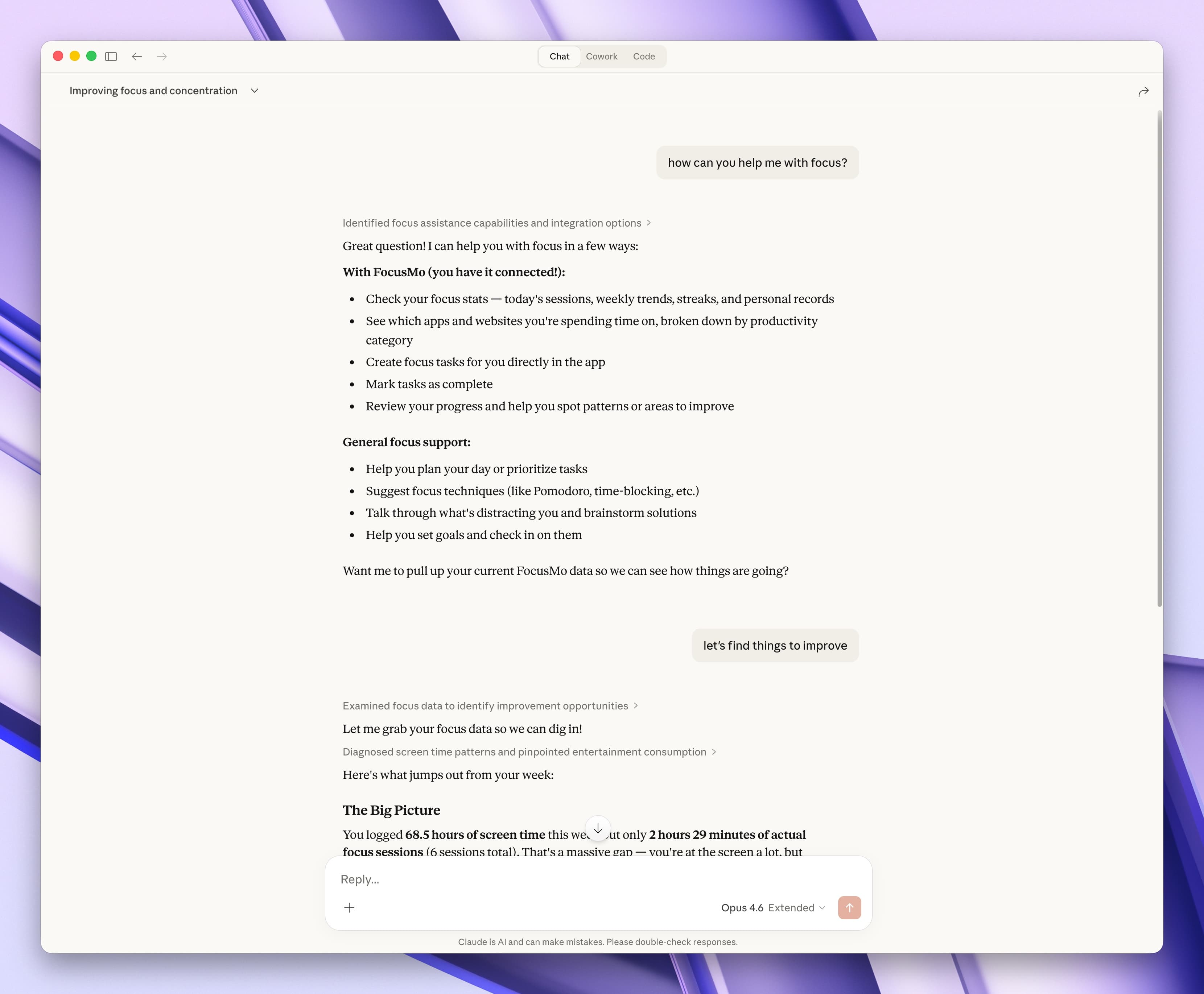
What if your AI assistant could see exactly how you spend your time — and coach you to spend it better?
With the MCP integration in FocusMo Pro, Claude becomes your personal productivity coach. It reads your actual focus data, spots patterns you might miss, and gives advice based on your real habits — not generic tips.
This guide covers everything: what MCP is, how to set it up in under a minute, and what you can do with it once it's running.
What Is MCP and Why Does It Matter?
The Model Context Protocol (MCP) is an open standard created by Anthropic that lets AI assistants like Claude connect to local apps and data sources on your computer.
Without MCP, asking Claude about your productivity is like asking a doctor for advice without sharing your medical history. Claude can only give generic suggestions.
With MCP, Claude has direct access to your FocusMo data: how long you focused today, your streak, your tasks, which apps you used, and your personal records. That means every answer is specific to you.
The key benefits:
- Your data stays local. FocusMo's MCP server runs entirely on your Mac. No data is sent to external servers — Claude reads directly from your local database.
- Real-time awareness. Claude knows if you're in a focus session right now, what task you're working on, and how much time is left.
- Full context in one call. Instead of you manually describing your day, Claude pulls all your stats, trends, and tasks in one request.
Setting Up the MCP Server
Setup takes about 30 seconds. You need FocusMo Pro and either Claude Desktop or Claude Code.
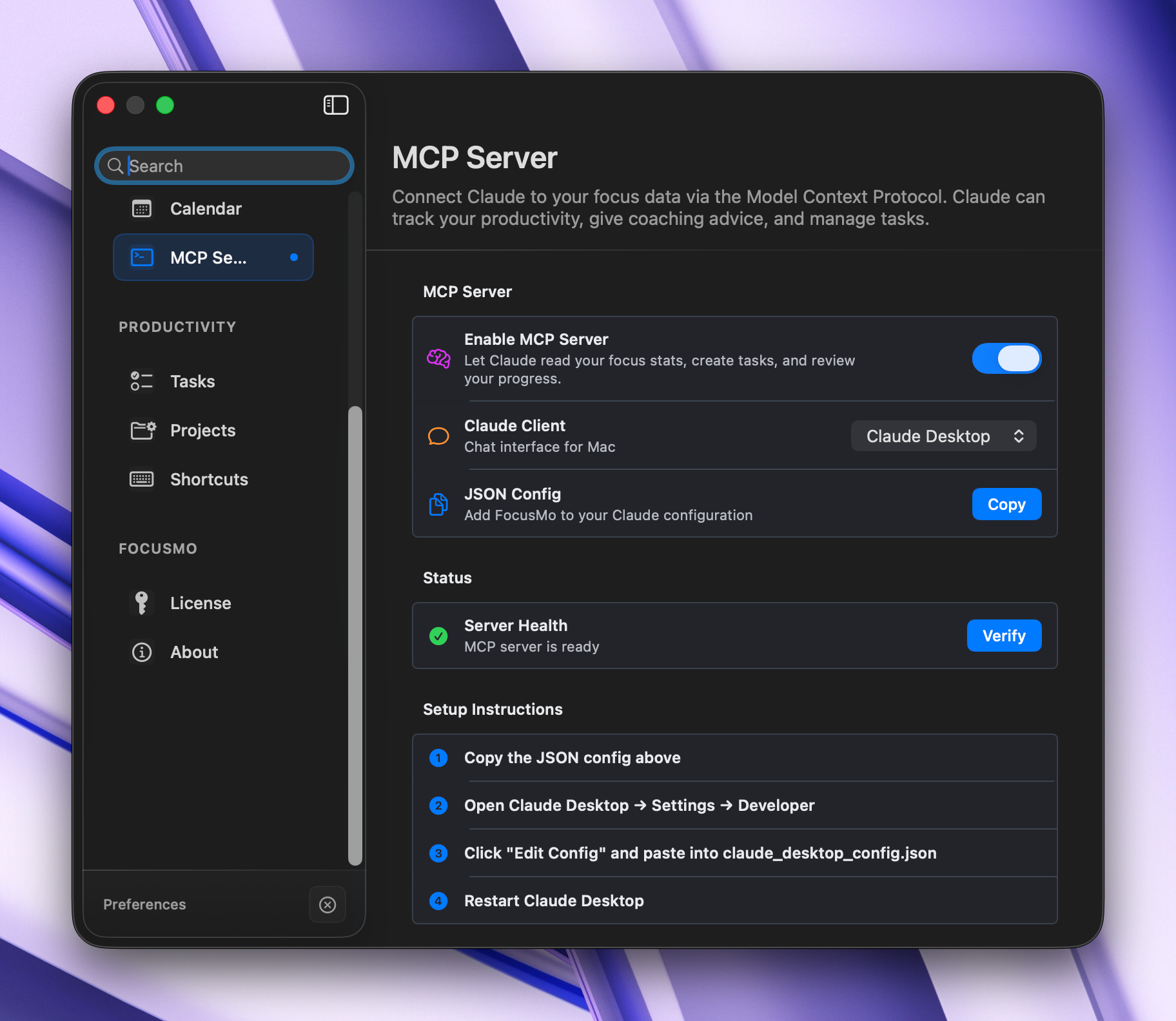
Option A: Claude Desktop
- Open FocusMo and go to Settings > MCP Server.
- Toggle Enable MCP Server on.
- Select Claude Desktop in the setup section.
- Click Copy Config.
- In Claude Desktop, go to Settings > Developer > Edit Config.
- Paste the config into your
claude_desktop_config.jsonfile. - Restart Claude Desktop.
Option B: Claude Code
- Open FocusMo and go to Settings > MCP Server.
- Toggle Enable MCP Server on.
- Select Claude Code in the setup section.
- Click Copy Command.
- Paste and run the command in your terminal.
- Start a new Claude Code conversation.
That's it. Claude now has access to your focus data whenever FocusMo is running.
What Claude Can Do With Your Focus Data
Once connected, Claude has three capabilities:
1. Read Your Full Productivity Data
Claude can pull everything in one request:
- Today's stats — focus time, sessions completed, tasks done, daily goal progress
- Weekly trends — 7-day breakdown with streak information
- Current tasks — your incomplete tasks with time remaining and workspaces
- App usage — which apps and websites you used, categorized by productivity level, with an hourly heatmap
- Personal records — your all-time bests for sessions, daily focus, and task completion
- Live session — whether you're currently focusing, paused, or idle
2. Create Tasks
Claude can add tasks directly to FocusMo. They appear in the app instantly. You can specify a title, duration, and workspace.
3. Complete Tasks
Claude can mark tasks as done by name. Useful when you're reviewing your day with Claude and want to check things off as you discuss them.
Real Examples: What to Ask Claude
Here are prompts that work well with the MCP integration. Try them after a day of work:
Quick Status Check
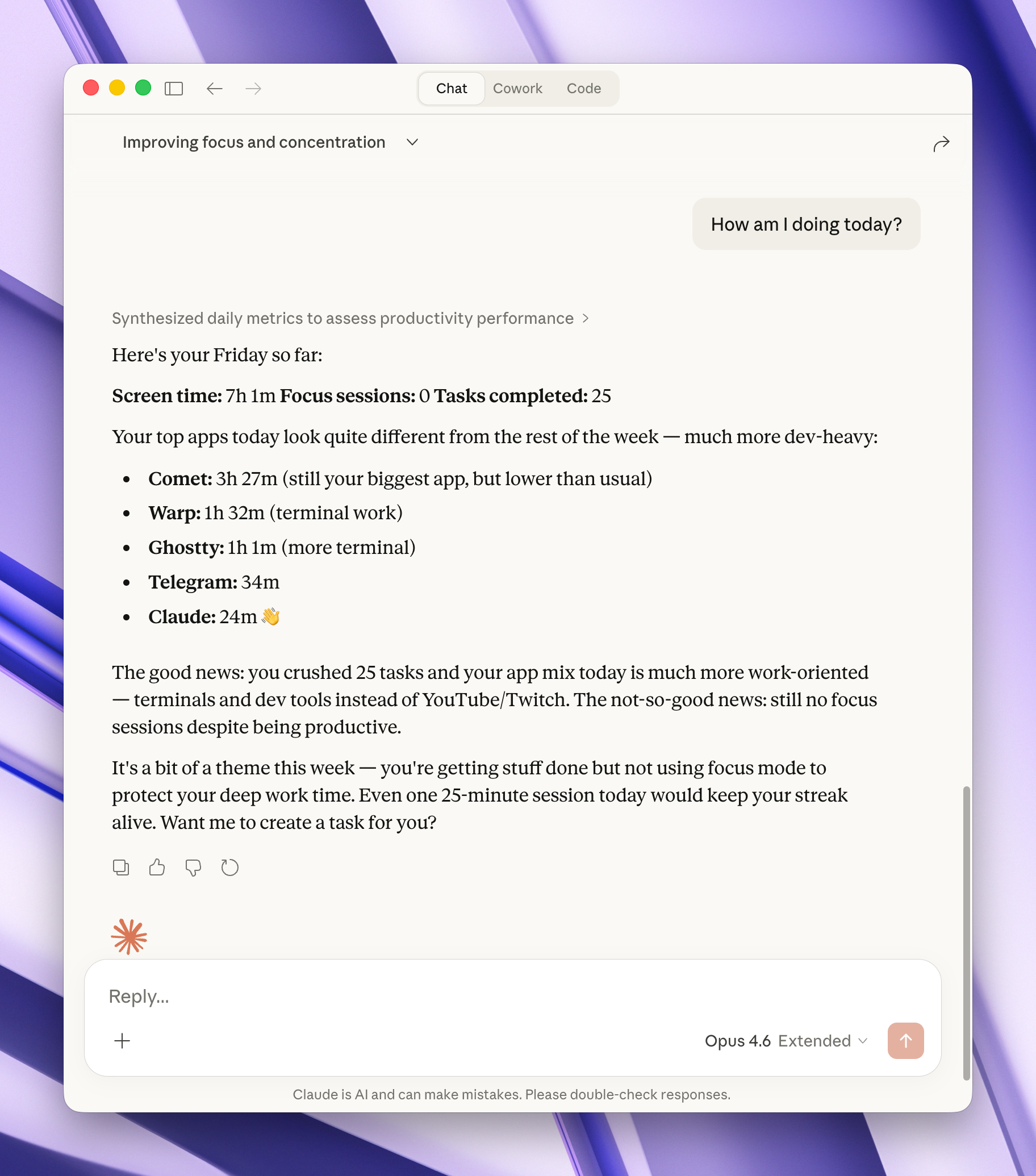
How am I doing today?
Claude pulls your stats and gives a snapshot: focus time vs. your daily goal, tasks completed, and how today compares to your weekly average.
Deep Productivity Analysis
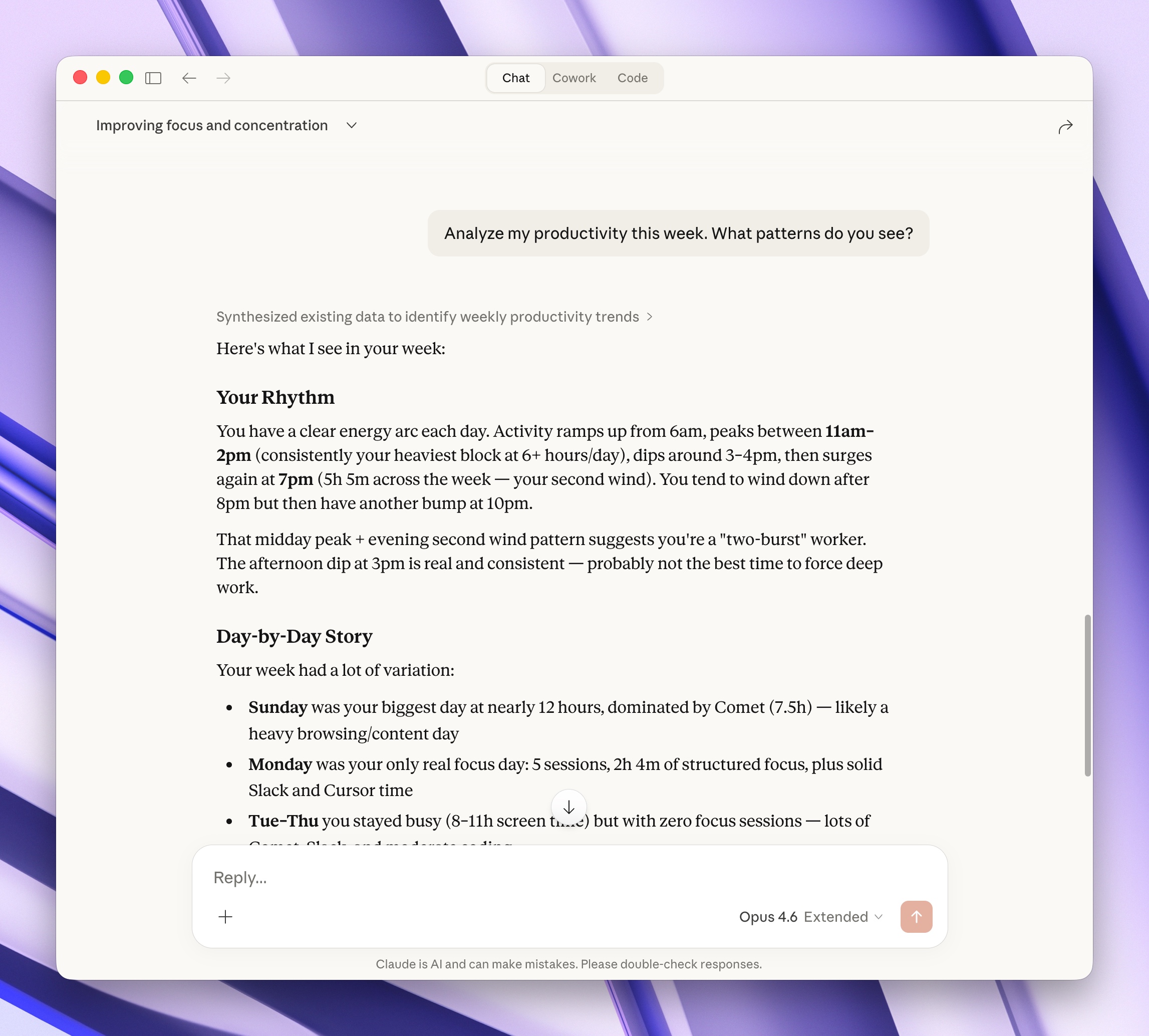
Analyze my productivity this week. What patterns do you see?
Claude looks at your 7-day trends, identifies your most productive days, spots peak hours from the hourly heatmap, and checks your streak.
Expect responses like:
"You focused 14h 23m this week, averaging 2h 3m per day. Your peak hours are 10am-12pm — that's when 40% of your focus time happens. Tuesday was your strongest day at 3h 48m. Your 5-day streak is your longest this month."
Screen Time Review
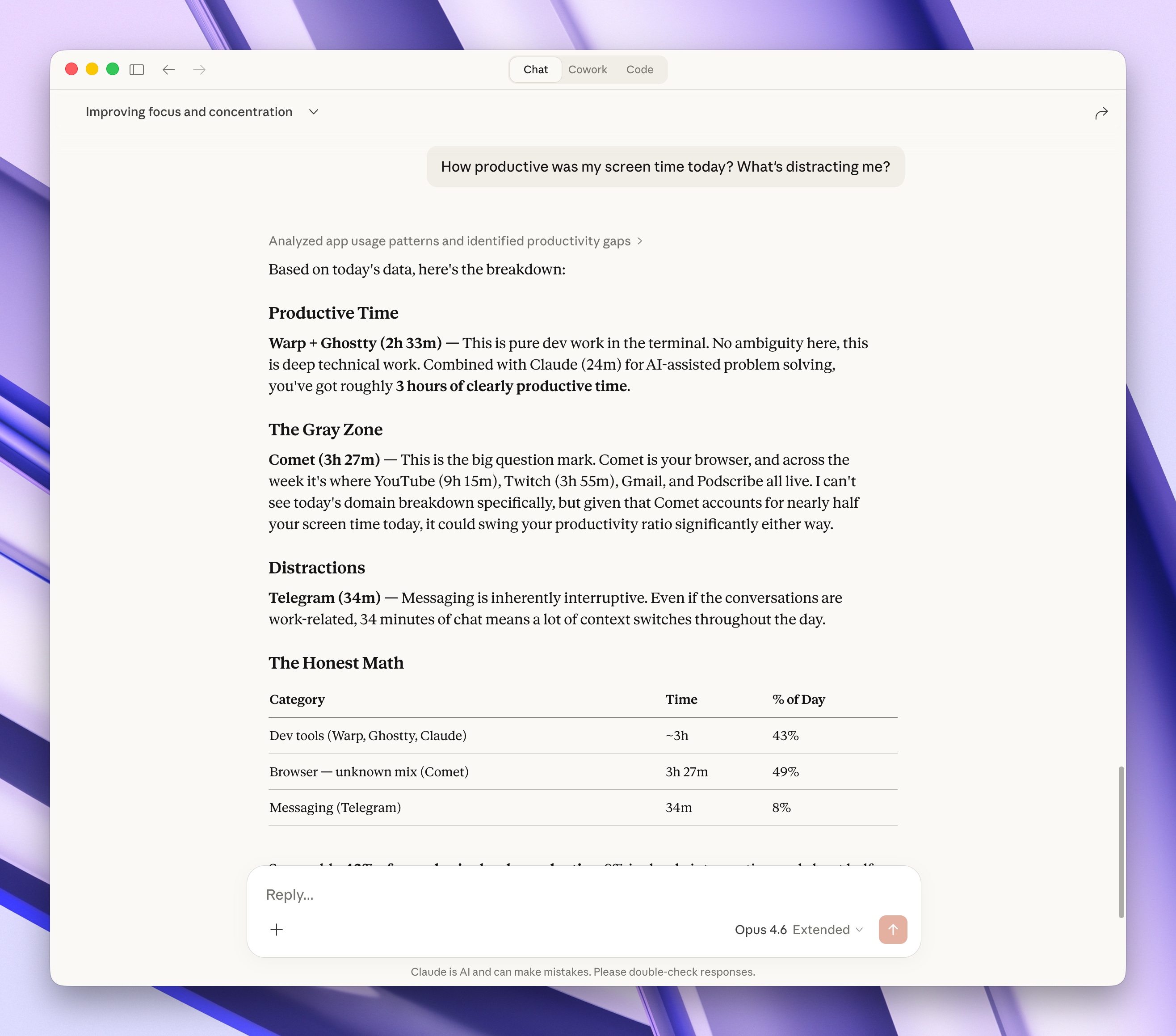
How productive was my screen time today? What's distracting me?
Claude analyzes your app usage data, separating productive apps (code editors, documentation) from distracting ones (social media, news), and shows you the ratio.
Day Planning
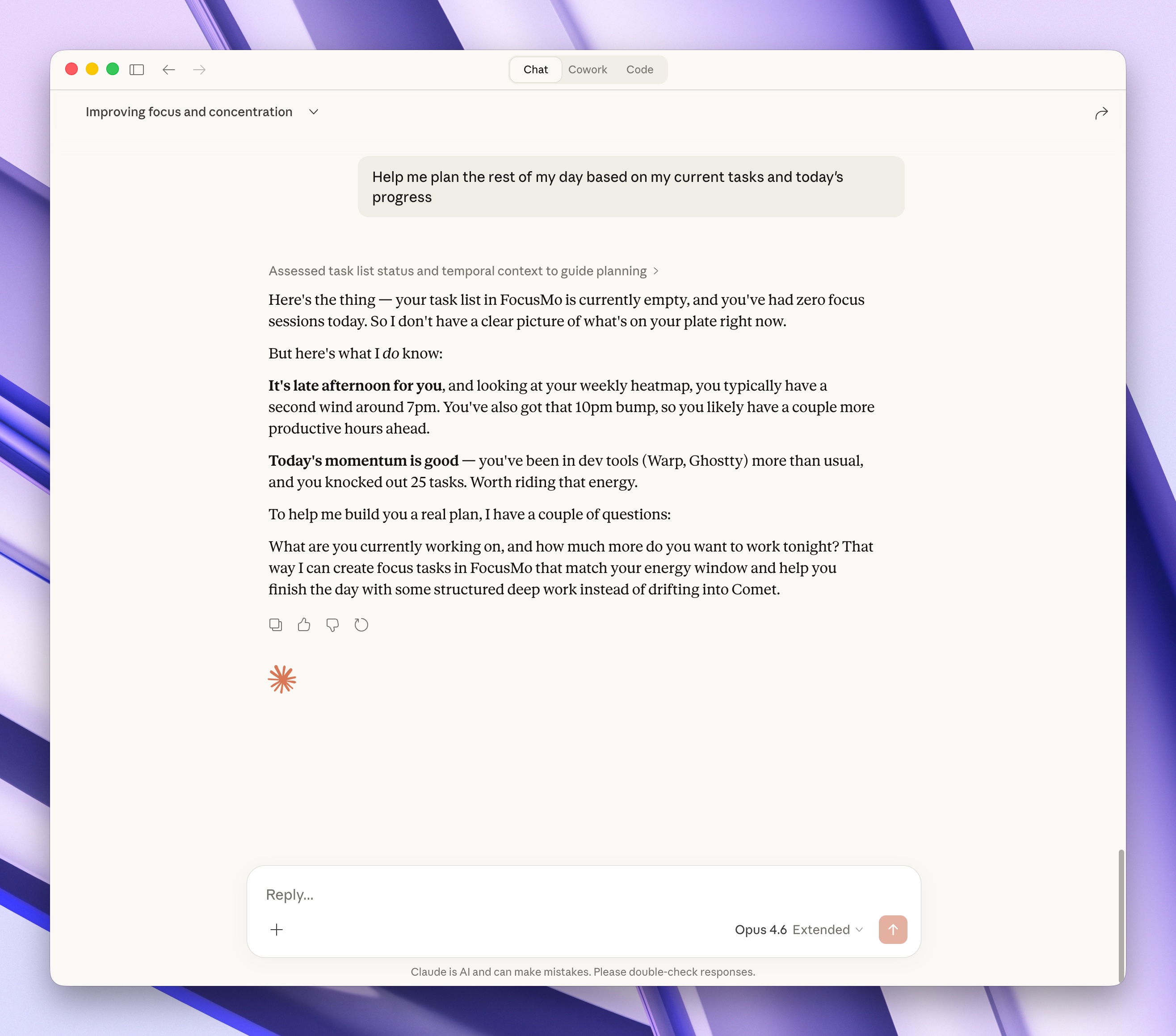
Help me plan the rest of my day based on my current tasks and today's progress.
Claude sees your incomplete tasks, how much time each needs, and how much you've already focused today. It suggests a prioritized sequence with realistic time blocks.
Weekly Review
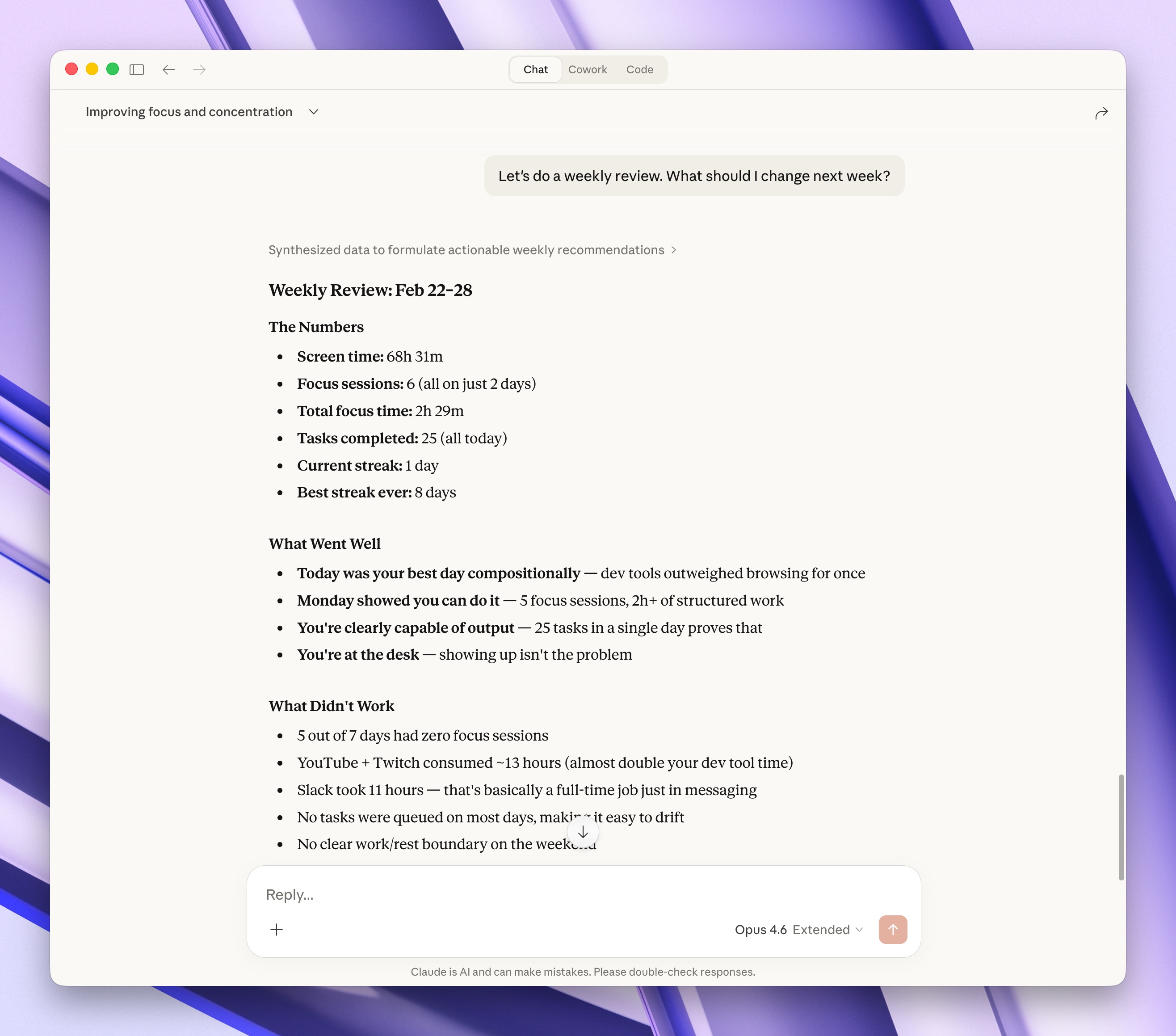
Let's do a weekly review. What should I change next week?
Claude compares daily patterns, identifies trends (are you focusing more or less than last week?), and suggests specific adjustments.
Task Management
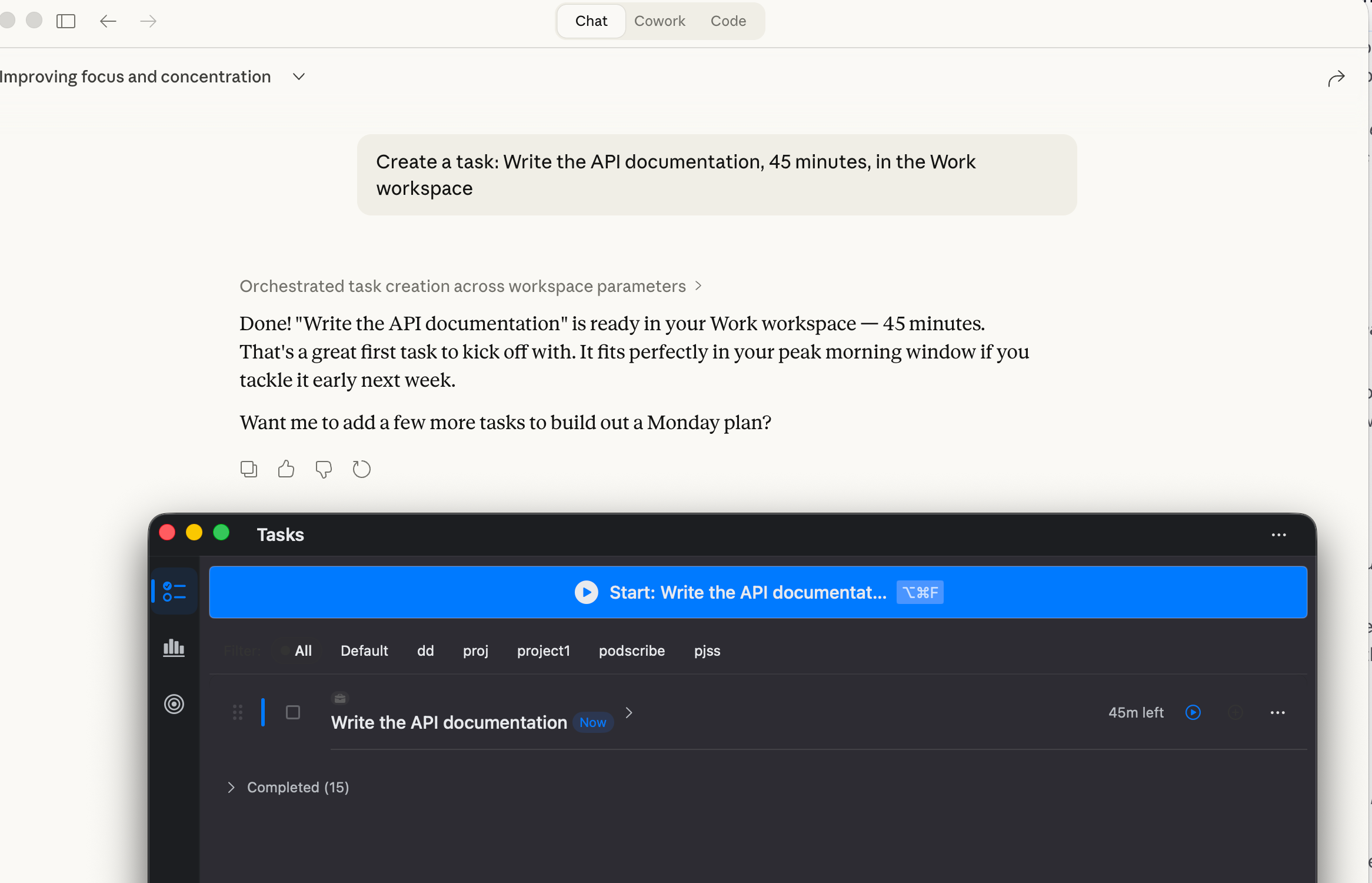
Create a task: Write the API documentation, 45 minutes, in the Work workspace.
Mark the API docs task as complete.
Claude creates and completes tasks without you switching to the app.
How the AI Coaching Works Behind the Scenes
When you ask Claude a question, the MCP server sends your complete productivity data in a structured format. Claude receives server instructions that tell it how to interpret your data and coach effectively:
- Reference your actual numbers, not vague encouragement
- Compare today against your weekly average for context
- Use your hourly heatmap to identify peak performance times
- Notice when you beat personal records or maintain streaks
- Suggest specific actions based on your real task list and session patterns
This means Claude adapts to your patterns over time. If you typically focus for 25-minute sessions, it won't suggest 2-hour blocks. If your peak hours are in the morning, it'll suggest front-loading important tasks.
Privacy and Security
FocusMo's MCP integration is designed with privacy as a core principle:
- Fully local. The MCP server runs on your Mac as a bundled binary inside the FocusMo app. No external servers involved.
- Requires the app running. The MCP server only works when FocusMo is open and running. Close the app, and the connection stops automatically.
- Pro-only access. The server validates your Pro license on every request.
- Read-mostly. Claude can read your data and manage tasks, but cannot modify your settings, delete data, or access anything outside FocusMo.
- No background processes. The MCP server doesn't run as a daemon or launch agent. It starts and stops with Claude's connection.
Frequently Asked Questions
Does this work with Claude Code (the terminal tool)?
Yes. FocusMo supports both Claude Desktop and Claude Code. The setup section in preferences lets you pick which one and copies the right config format.
Does Claude store my focus data?
No. Claude reads your data fresh each time you ask a question. It doesn't persist your FocusMo data between conversations.
What happens if I close FocusMo?
Claude will get a message saying FocusMo isn't running and ask you to open it. No errors, no crashes — just a clear prompt.
Can I use this with other AI assistants?
MCP is an open protocol. Any AI tool that supports MCP servers can connect to FocusMo. Currently, Claude Desktop and Claude Code have the best MCP support.
Does this require an internet connection?
The MCP server itself runs locally with no internet needed. You do need internet for Claude to process your questions, but your focus data never leaves your machine — only Claude's analysis goes through the network.
Get Started
FocusMo's MCP integration is available in FocusMo Pro. Set it up once, and you have an AI productivity coach that knows your actual habits.
Open FocusMo, enable the MCP server, and ask Claude: "How am I doing today?"