
Activity Tracking
See where your time actually goes — apps, websites, and idle time, tracked privately on your Mac.
Focusmo can monitor which apps and websites you use throughout the day, so you can see where your time went and how it lines up with your focus sessions.
Private by design
Activity data is stored locally on your Mac. Your app and website usage never leaves your device.
What gets tracked
- The frontmost app you're using and how long you stay in it.
- For browsers, the active website (URL and tab title). 15 browsers are supported, including Safari and the Chrome family.
- App switches — how often you jump between apps.
- Idle time — when you step away, lock the screen, or your display goes to sleep.
Consecutive uses of the same app within 60 seconds are merged into a single block, so the timeline stays readable.
Tracking modes
You can choose how much Focusmo watches:
| Mode | Behavior |
|---|---|
| Always on | Tracks activity all day, whether or not a session is running. |
| Only during focus sessions | Tracking starts when you begin a session and stops when it ends. |
Switch modes in Settings → General → Activity Tracking (the Track activity only during focus sessions switch).
Required permission
Activity tracking needs the macOS Accessibility permission to read the active window and browser URL. When the permission is missing, Focusmo shows a one-click shortcut that opens the right page in System Settings.
Reading the timeline
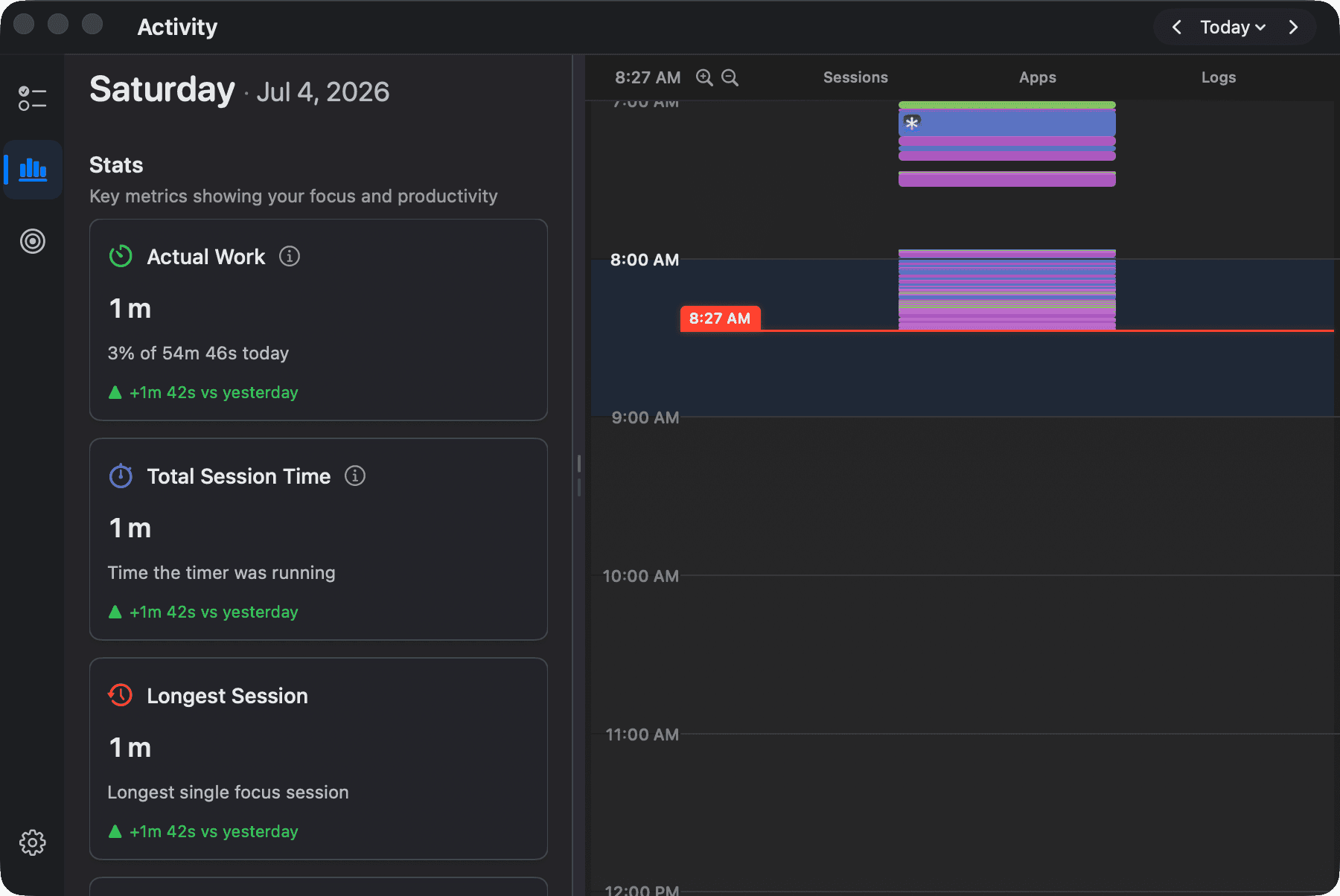
Open Insights (⌘3) — the timeline sits below today's summary (see Insights):
- Each block is an app you used. Click a block to see details — app name, duration, website, and window title.
- Apps are color-coded by productivity: green for productive (dev tools, business, utilities), gray for neutral, pink for distracting (entertainment, games, social).
- Apps used during a focus session get a yellow border and a star badge, so you can tell focused work from ambient usage.
- Idle stretches appear as overlays: blue for a locked screen, purple for display sleep, gray for generic idle. Idle periods under 5 minutes are ignored.
You can toggle idle detection and hide idle blocks in settings if you prefer a cleaner timeline.
Managing your data
- Delete a focus session — open the session details and click the trash icon. This removes the session and its associated activity.
- Clear activity tracked outside sessions — expand the "App Usage" section and click the trash icon.
- Delete a single entry — right-click it and choose delete.
Free vs Pro
The today view of the timeline is free. Past days, plus the timeline's filters, breakdowns and categories, require Focusmo Pro.