
Getting Started
Your First Session
What happens on first launch, and how to get to your first focused block.
First launch
On first run, Focusmo walks you through three short steps:
- Welcome — "What brings you here?" Pick a goal if you like (it's optional, and Skip is right there). Your pick suggests a first task for step 3.
- Bring your tasks — connect the task manager you already use in one click: Things (if it's installed), Apple Reminders, and Todoist or TickTick are offered right in the step, and today's tasks come straight in. The same step lets you allow the Accessibility permission (so Focusmo can read text you select), choose the text shortcut that turns any selected text into a block, and try it — plus a Check-ins switch for a quick what did you get done? prompt during focus. Everything here can wait: I'll do this later moves on.
- Start your first block — name the task, pick a length (15, 25, 45 or 50 minutes), and press Start focusing. Prefer to look around first? Just take me in opens the app without starting a timer.
A 7-day Pro trial starts automatically on install — no card, nothing to fill in — so you see the whole app before deciding. See Free vs Pro.
Every task manager — Things, Reminders, Todoist, TickTick, Microsoft To Do, Google Tasks, Obsidian — is free on every plan. The ones not shown in onboarding live in Settings → Integrations.
The basic loop
- Add a task — press
con the Focus screen or use the command palette (⌃⌘T). Type something likeWrite report 45m. - Start — press Start on the Up next card (or ⌥⌘F from anywhere), or ⌘Enter in the palette.
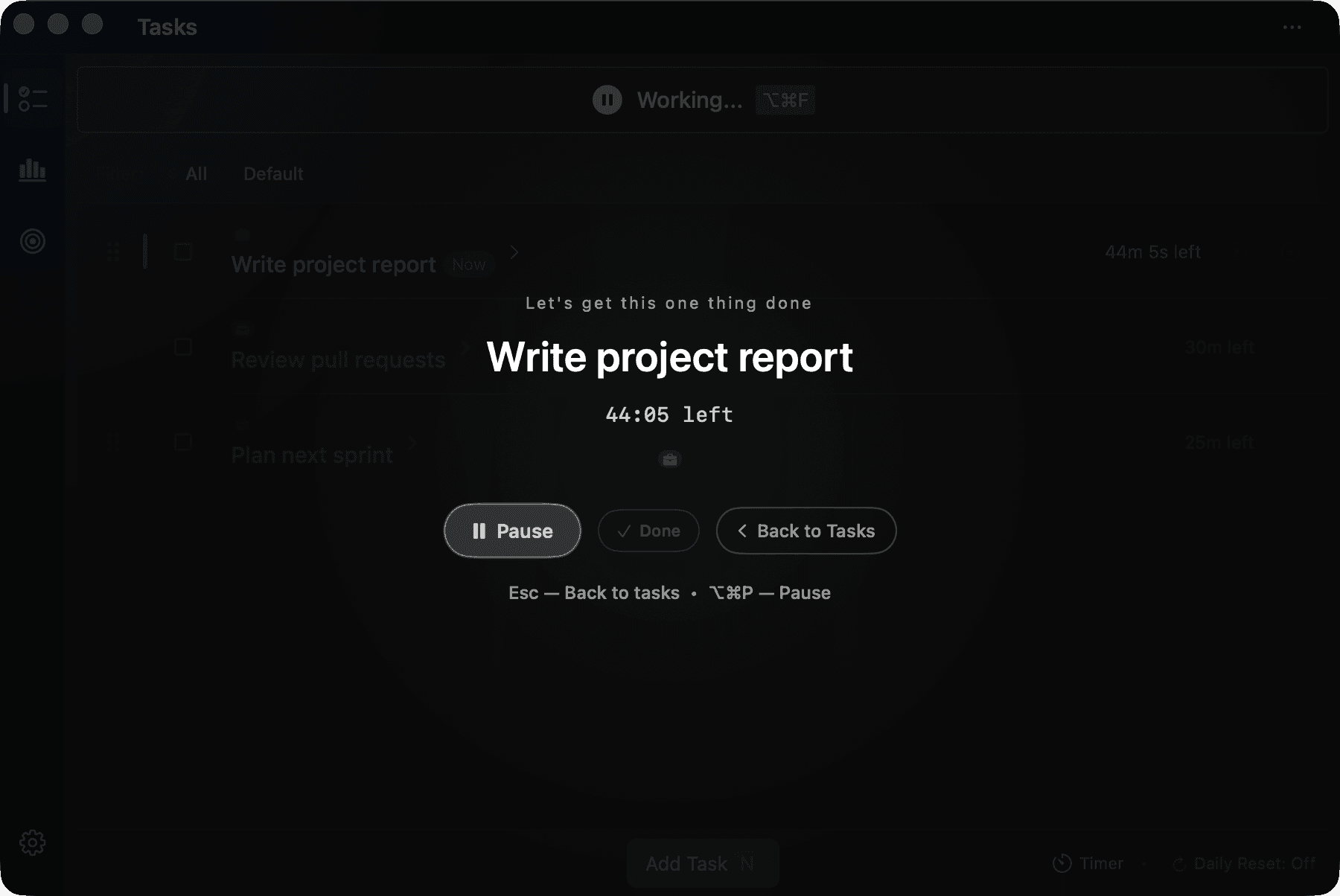
- Work — the timer counts down; distractions get blocked if your task has a Project.
- Finish — press Done when the task is finished (that completes it), or let the timer run out; jot down what you accomplished if you like.
- Review — open Insights (⌘3), or let the day wrap show you where the day went.
After onboarding
- Turn on Launch at login (Settings → General) so Focusmo is always ready.
- Connect more task managers, the calendar, or the Claude MCP server in Settings → Integrations.
Next: learn the timer modes, or connect your task manager.