
Running a Session
How to start, pause, and finish a focus session — and what happens along the way.
A focus session is the heart of Focusmo: you pick a task, start the timer, and the app protects your attention until you're done.
Starting a session
There are several ways to start, so you can use whichever fits your flow:
- Up next card — the top of the Focus screen (⌘1) shows the task that starts next, its length and timer mode. Press Start, or ⌥⌘F from anywhere.
- Floating timer — click the Start button on the floating timer.
- Command palette — open the palette, type or select a task, and press ⌘Enter to start immediately. Type a duration first (like
30m,1.5h, oruntil 5pm) to run the session for exactly that long. Plain Enter just adds the task to your list without starting. - Task list — starting a task (or moving it to the top) begins a session on it.
- Deep Focus view — select up to 3 main goals for the day and work through them (see Deep Focus).
- Menu bar — start right from the status-bar icon menu.
- Quick capture — a global shortcut can grab the task currently selected in Things 3 and start a session on it in one keystroke.
- Shortcuts & Siri — "Start a focus session in Focusmo". See Shortcuts & Siri.
The focus overlay
While a session runs, Focusmo can show a full-screen focus lock overlay — a dimmed screen with just one thing on it: your current task, and the time remaining. Clicking the background does nothing on purpose; the design goal is to keep exactly one commitment in front of you.
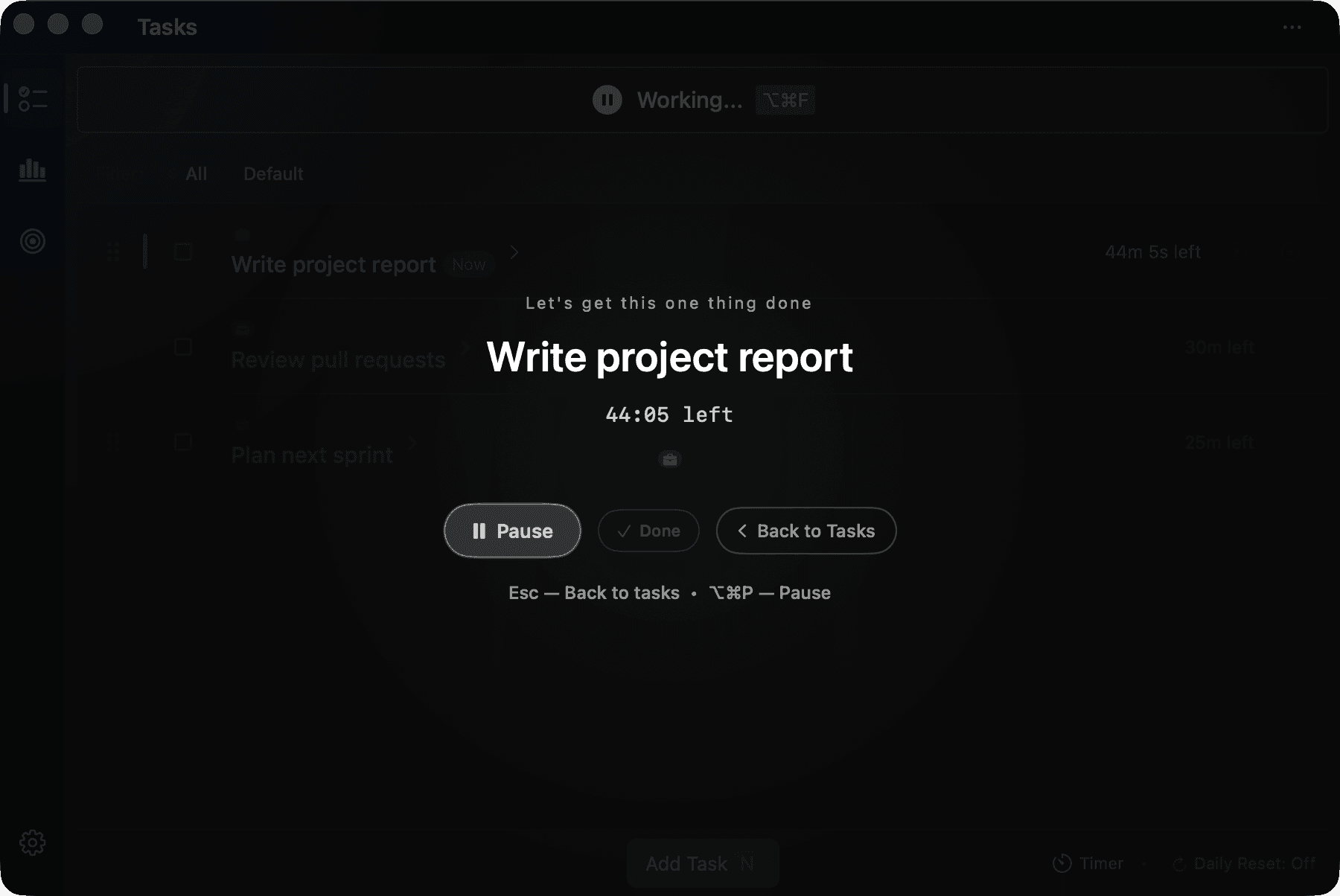
Controls on the overlay:
| Control | What it does | Shortcut |
|---|---|---|
| Pause / Resume | Pauses the timer (a "Paused" badge appears). | ⌥⌘P |
| Done | Completes the current task. Intentionally muted so you don't hit it by accident. | — |
| Back to Tasks | Minimizes the overlay without stopping the timer — browse your tasks, then press play to return. | Esc |
During a session
- Add 5 minutes — hover over the timer to reveal a +5 button (Timer mode only). It's also offered on the completion screen.
- Blocking is active — if the task's Project has blocking rules, blocked apps are closed and blocked websites are redirected while the timer is in a working state (not while paused or on a break).
- Do Not Disturb — with the DND integration enabled, macOS notifications are silenced automatically.
Ending a session
A session ends when you complete the task, complete all tasks, the timer finishes, a Pomodoro round completes, or you stop manually. Stopping early skips any pending break and goes straight to the wrap-up.
Done completes the task. Pressing Done on the overlay or the floating timer marks the task finished (just like ticking its checkbox in the list), and a linked task in Things, Reminders or another source is completed there too (following your Complete Behavior setting).
The completion screen
When a session ends, the completion screen appears with context-aware buttons — for example Finish Session, Add 5 Minutes, Take Short Break, or Start Next Cycle, depending on how the session ended.
If reflection notes are enabled (Settings → General → App Behavior → Show reflection notes), Focusmo asks what you accomplished, with a text field. If you pressed Done, the task is already marked complete; otherwise a "Mark task as complete" checkbox lets you log progress on a task without closing it out.
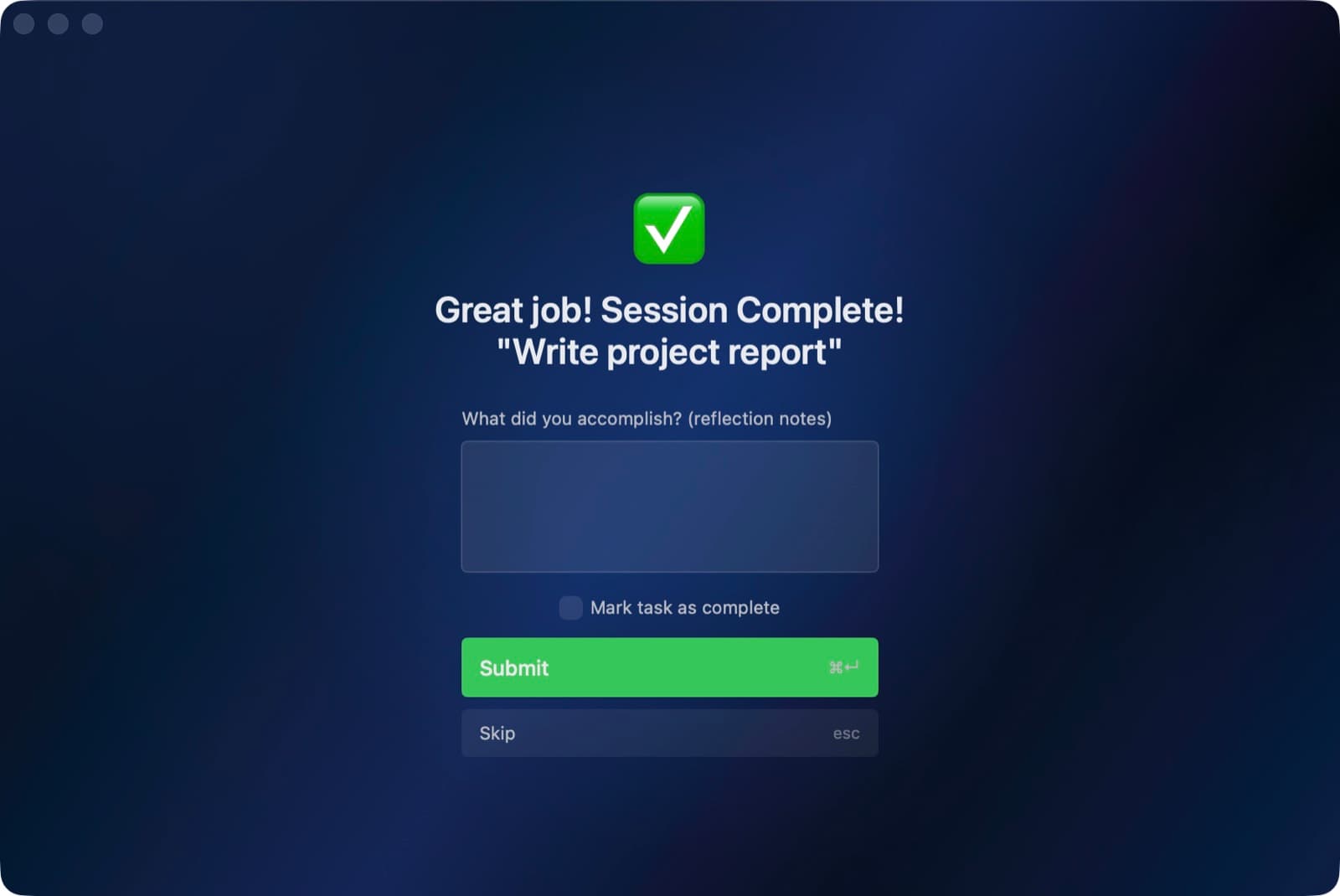
In Pomodoro, the end of a break brings its own next-step screen — Start next block or Done for today.
Sessions also feed your streak, daily goal, badges, and personal records — finishing a session is how all of the gamification progresses. At the end of the day, the day wrap shows where it all went.
Keyboard shortcuts
| Shortcut | Action |
|---|---|
| ⌥⌘F | Start / pause the timer (global) |
| ⌘Enter (command palette) | Start the selected/typed task now |
| Enter (command palette) | Add task to the list without starting |
| Esc (focus overlay) | Back to tasks — session keeps running |
| ⌥⌘P (focus overlay) | Pause / resume |
| ⌘Z | Undo deleting, completing, or moving a task |
| ⌘B | Toggle backlog |
| ⌘1 / ⌘2 / ⌘3 / ⌘4 | Focus / Calendar / Insights / Projects |
| ⌘⌃I | Add task to the Big Tasks Island |
| ? | Show all shortcuts |