
Managing Tasks
Create, edit, complete, and organize tasks — the fuel for your focus sessions.
Every focus session runs on a task. Tasks live on the Focus screen (⌘1), and there's no limit on how many you can create — on any plan.
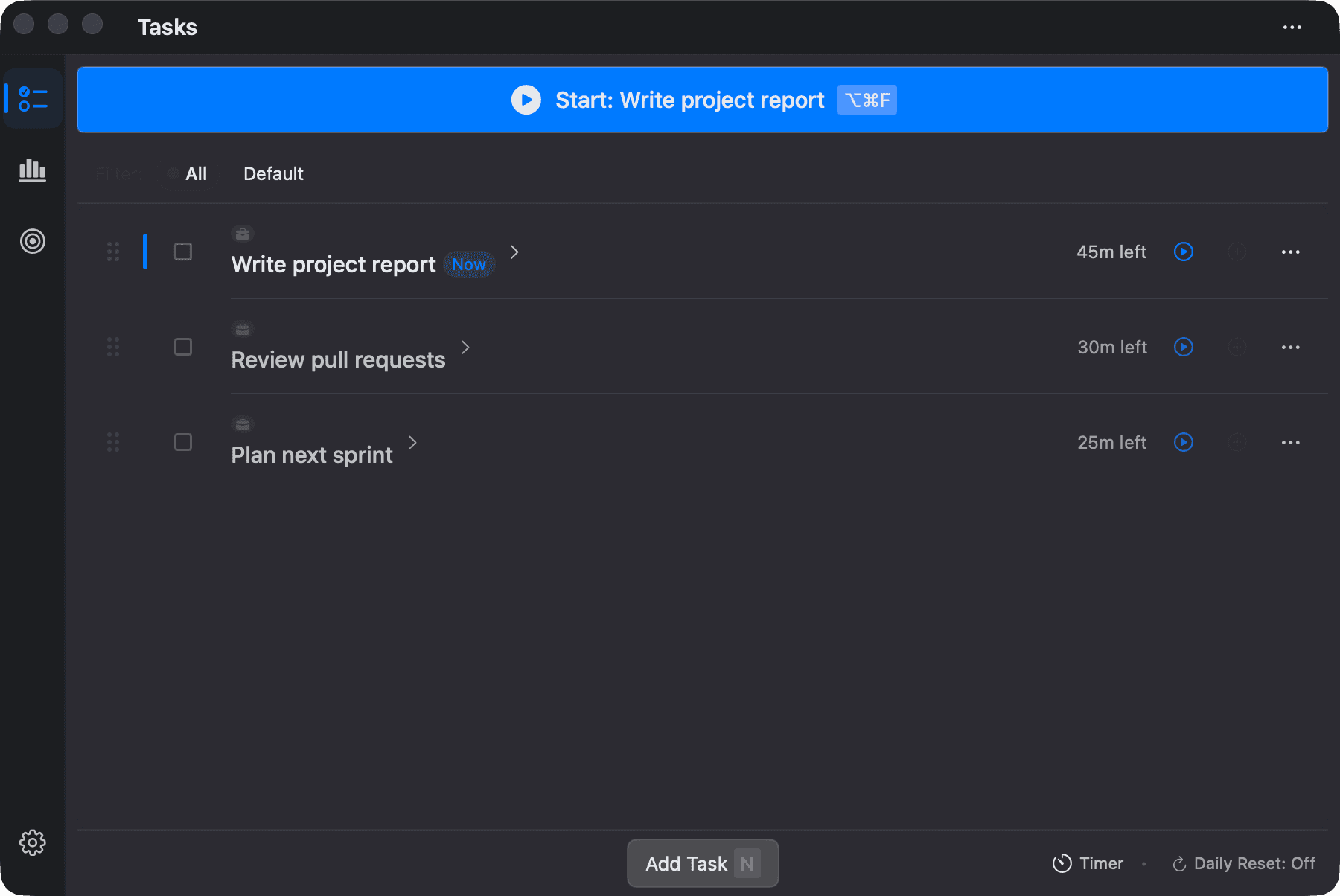
The Up next card
The top of the Focus screen is the Up next card: the task that starts next, and one Start button (⌥⌘F from anywhere). Two chips beside it set how the block runs:
- Length — preset lengths for the next task or Pomodoro block, plus Edit task… (or Pomodoro settings).
- Mode — Timer, Stopwatch, or Pomodoro (see Timer Modes).
While a session runs, the card shows what you're working on with Pause / Resume; during a break it offers End break. With nothing planned, Start becomes Add a task.
Creating a task
The fastest way is Quick Add: click + Add Task, press c on the Focus screen, or use the command palette. One text field does everything — type naturally and Focusmo parses as you go:
Fix login bug 45m— sets the title and a 45-minute duration.- Durations like
5m,1h,1h 30mare recognized; no duration means 30 minutes by default. @— assign (or create) a Project (creating Projects is Pro).noreset— pin the task so daily reset leaves it alone.Shift+Tab— cycle the timer mode pill (Timer / Stopwatch / Pomodoro).⌥←/→adjusts duration by ±1 minute,⌘←/→by ±5.
You can also add tasks from Shortcuts or Siri — see Shortcuts & Siri.
For the full form, open a task's ⋯ menu → Edit Task:
| Field | Default |
|---|---|
| Title | — |
| Timing mode (Timer / Stopwatch) | Timer |
| Duration (with preset chips 5/15/25/30/45m, 1–4h) | 25 min |
| Project | Default project (selector is Pro) |
| Exclude from daily reset (pin) | Off |
| Timer behavior (Global default / Minimum Goal / Time Limited) | Global default |
The task list
- Active tasks on top; a collapsible Completed section below (with a per-section Clear All).
- Complete a task with its checkbox — or press Done while it's running. A brief celebration plays, and completion syncs back to a linked external source (Things, Reminders, …).
- Reorder by dragging the grip handle, or ⋯ menu → Move Up/Down (
⌥↑/↓). Reordering is disabled during a session and for external tasks. - Filter by Project using the filter bar (appears once you have Projects).
- Delete via the ⋯ menu, right-click, or
⌘Delete— deliberately not a one-click inline button. - Rows have inline Start/Pause, Add 5 minutes, and Reset to original time (when a timer hit zero). Double-click to expand details.
Undo
Deleted, completed, or moved the wrong task? Press ⌘Z (or Edit → Undo) to put it back — the Edit menu names what will be undone, like Undo Delete Task. ⇧⌘Z redoes it. Undoing a completion reopens the task in a linked source too, where the source supports it (TickTick doesn't).
Backlog
The backlog is your parked list. Incomplete tasks move there automatically at daily reset, or you can move them yourself. Press ⌘B to flip between active list and backlog; each backlog row has a single Restore to Active button.
Main goals: up to 3 a day
Focusmo's opinion: pick 1–3 main goals per day rather than working a long list. The "Select Your Main Goals" sheet (part of Deep Focus) is where you choose them; they reset each morning and are what the widgets display.
External tasks
Tasks synced from Things 3, Reminders, TickTick and other sources — free on every plan — look like regular tasks with a source icon, project/area, tags, and due date. Their titles are read-only — they update from the source on every sync — and they can't be manually reordered, but you can change duration and timer mode, start sessions on them, and complete them (completion syncs back).
Keyboard shortcuts (task list)
| Key | Action |
|---|---|
j / k | Move selection down / up |
Return | Start/pause or expand |
c | New task |
e | Edit selected task |
⌘Delete | Delete selected task |
⌘Z / ⇧⌘Z | Undo / redo delete, complete, or move |
⌥↑/↓ | Reorder |
Shift+Tab | Cycle timer mode |
⌘B | Toggle backlog |
Most shortcuts are disabled during an active session — focus first.